
Beauty Unlocked
Text Message Using T9Word: Quickstart Guide, iPhone, & Android
Jun
Before tiny glass keyboards, autocorrect fails, and the universal embarrassment of sending “ducking” when you definitely meant something else, there was T9Word. Also called T9 predictive text, it helped people write full words on old-school phone keypads using only the number keys. It was fast, clever, and weirdly satisfyinglike solving a puzzle while texting your best friend from the back seat of your parents’ minivan.
Today, T9Word is no longer the default way most people text. iPhone and Android keyboards now rely on full QWERTY layouts, autocorrect, swipe typing, voice typing, emoji suggestions, and predictive text bars. Still, T9 has not disappeared. Some flip phones still use it. Some Android phones and third-party keyboards support a T9-style layout. iPhone users can also recreate the experience with add-on keyboards, though Apple does not include classic T9 texting as a native Messages keyboard.
This guide explains how T9Word works, how to use it for text messages, what your options are on iPhone and Android, and when this delightfully retro input method still makes sense. No rotary phone required.
What Is T9Word?
T9 stands for Text on 9 Keys. It is a predictive typing system built for phones with a numeric keypad. Instead of tapping a key several times to choose a letter, you press each number once and let the phone guess the word.
For example, on a traditional phone keypad:
- 2 = A, B, C
- 3 = D, E, F
- 4 = G, H, I
- 5 = J, K, L
- 6 = M, N, O
- 7 = P, Q, R, S
- 8 = T, U, V
- 9 = W, X, Y, Z
To type home, you press 4663. The phone sees that sequence and predicts “home.” The same numbers might also match “good,” “gone,” or “hood,” so T9Word offers alternatives when needed. That is where the “Word” part comes in: instead of typing individual letters, you type the number pattern for a whole word.
Why People Still Like T9Word
T9Word may sound ancient, but it has real advantages. The keys are bigger, the motion is repetitive, and many experienced users can type without staring at the keyboard. For people who grew up with flip phones, T9 can feel faster than tapping a tiny touchscreen keyboard with thumbs that occasionally behave like two confused hot dogs.
It can also be useful for accessibility. A 3×4 keypad layout gives each key more space than a full QWERTY keyboard. That can help users with large fingers, limited dexterity, low vision, or a preference for simpler layouts. It is not automatically better for everyone, but it remains a practical option for some people.
How to Text Message Using T9Word
Step 1: Open Your Messaging App
Start by opening your text messaging app. On an older feature phone, this might be called Messages, Messaging, or SMS. On modern phones, you may use Apple Messages, Google Messages, Samsung Messages, WhatsApp, Messenger, Signal, or another chat app.
Step 2: Choose T9Word or Predictive Text Mode
On classic phones, text entry modes often include options such as ABC, Abc, 123, Symbols, and T9Word. If you see T9Word, select it. If you only see ABC, you are probably in multi-tap mode, meaning you must press a number repeatedly to choose a letter.
On smartphones, you may need to enable a T9-style keyboard first. Android users may find a 3×4 layout in certain manufacturer keyboards or through third-party keyboard apps. iPhone users generally need a third-party keyboard from the App Store to recreate classic T9 typing.
Step 3: Press One Key Per Letter
With T9Word enabled, do not tap several times for one letter. Press each key once for each letter in the word.
Examples:
- the = 843
- home = 4663
- text = 8398
- hello = 43556
- cool = 2665
The phone predicts the word as you type. If it guesses correctly, accept the word by pressing space, tapping the suggestion, or using the phone’s select key. If it guesses wrong, cycle through the alternatives.
Step 4: Use the “Next” Option for Similar Words
Some number combinations can create several words. For example, 4663 may produce “home,” “good,” “gone,” or another word depending on the dictionary and your typing history. On older phones, the * key, a soft key, or a “Next” option often cycles through choices.
This is the part where T9 feels brilliantor mildly possessed. If you meant “home” and it keeps choosing “good,” do not panic. Tap the next-word option until the correct word appears. T9Word gets better when you consistently choose the right option.
Step 5: Add New Words
T9 dictionaries do not always know names, slang, brand terms, usernames, or your friend’s creatively spelled dog name. If the word is not available, switch to ABC or manual entry mode, type the word, and save it if your keyboard offers that option. Many predictive systems learn from repeated use.
This matters for names like “Kai,” “Zayden,” “Mika,” “Jax,” or “Xochitl.” T9Word is clever, but it is not a mind reader. It is more like a librarian with a calculator.
T9Word on iPhone
Does iPhone Have Built-In T9 Texting?
Modern iPhones do not include classic T9Word texting as a built-in Messages keyboard. Apple’s default keyboard is a touchscreen QWERTY keyboard with autocorrection, predictive text, text replacement, dictation, emoji suggestions, and multilingual keyboard support. That means you can use predictive typing on iPhone, but it is not the same as old-school T9Word.
How to Turn On Predictive Text on iPhone
If you mainly want faster typing, start with Apple’s built-in predictive text:
- Open Settings.
- Tap General.
- Tap Keyboard.
- Turn on Predictive Text or Predictive, depending on your iOS version.
- Open Messages and begin typing.
As you type, iPhone suggests words and phrases above the keyboard. You can tap a suggestion to complete the word or continue typing normally. This is not T9, but it serves the same big goal: fewer taps, faster messages, less thumb drama.
How to Use a T9-Style Keyboard on iPhone
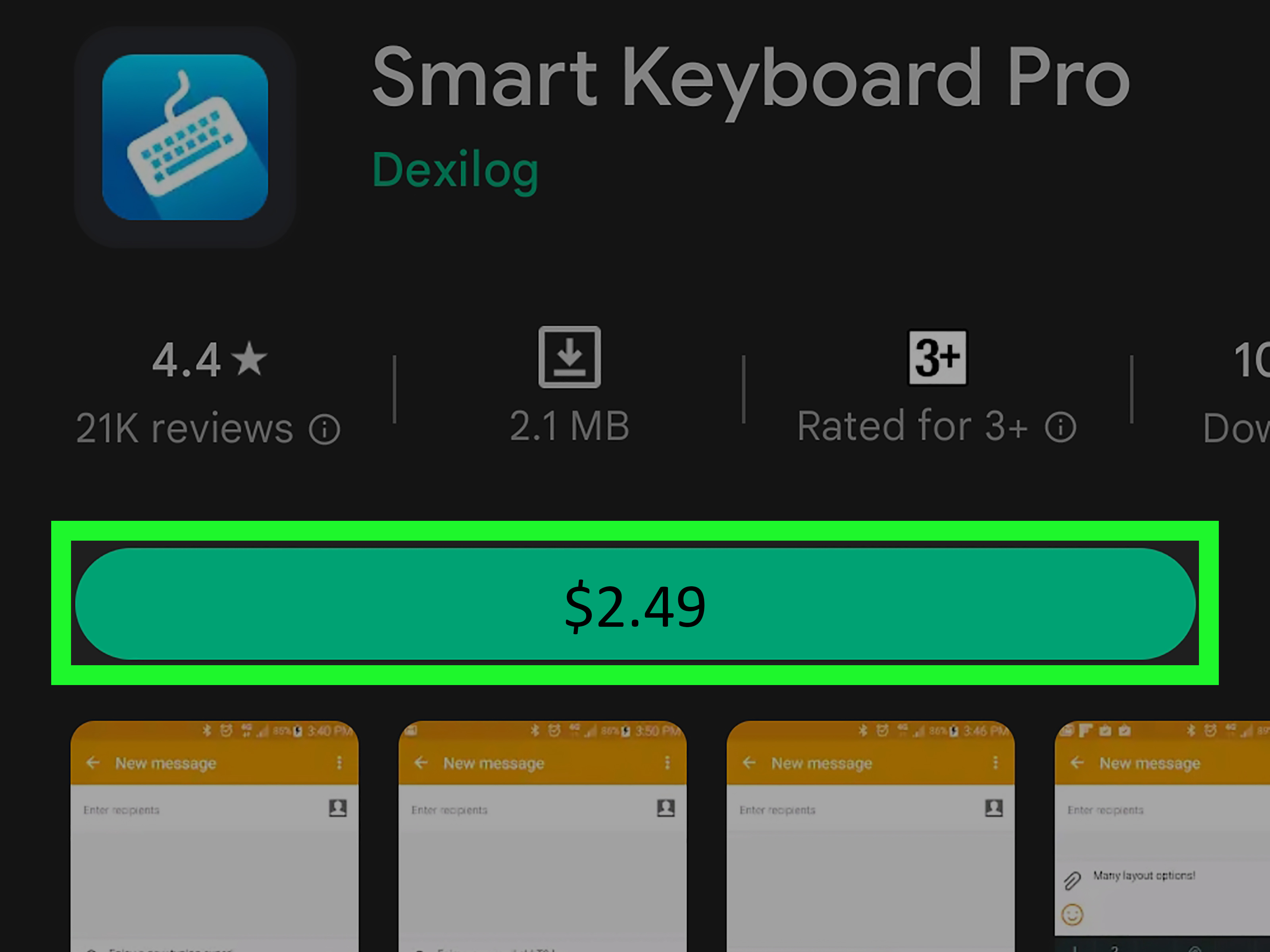
To use a T9-style keypad on iPhone, you will usually need a third-party keyboard app. Search the App Store for terms such as T9 keyboard, number keyboard, retro texting keyboard, or T9 predictive keyboard. Some apps recreate the 3×4 keypad and offer T9 word prediction.
After installing a keyboard app:
- Open Settings.
- Go to General > Keyboard > Keyboards.
- Tap Add New Keyboard.
- Select the keyboard you installed.
- Open Messages or another typing app.
- Press and hold the globe icon to switch keyboards.
Be careful with keyboard permissions. Some third-party keyboards ask for “Full Access” to enable advanced features. Before granting it, read the app’s privacy details, reviews, developer information, and data collection policy. A keyboard sees what you type while you are using it, so treat it like a tiny doorman for your personal information.
T9Word on Android
Does Android Have T9 Texting?
Android support depends on the phone and keyboard. Some Samsung Galaxy devices and older Android keyboards have offered 3×4 keypad layouts or predictive text settings. Google’s Gboard focuses on QWERTY, glide typing, voice typing, handwriting, autocorrect, and word suggestions rather than classic T9Word. If your phone does not include T9, you can install a third-party T9 keyboard from Google Play.
How to Use Predictive Text on Gboard
If you use Gboard, you can improve typing speed with suggestions and autocorrect:
- Open any app where you can type.
- Tap the text field to show the keyboard.
- Open the Gboard settings menu.
- Choose Text correction.
- Turn on options such as Show suggestion strip, Next-word suggestions, and Auto-correction, if you want them.
This gives you modern predictive text rather than classic T9. For many users, that is enough. If you specifically want the number-keypad experience, continue to the next section.
How to Install a T9 Keyboard on Android
Android makes keyboard switching flexible. To add a T9-style keyboard:
- Open Google Play.
- Search for T9 keyboard, traditional T9, or 12-key keyboard.
- Choose an app with recent updates, clear privacy information, and strong reviews.
- Install the app.
- Go to Settings > System or General management > Keyboard, depending on your phone.
- Enable the new keyboard.
- Select it as your default input method or switch to it while typing.
On Samsung phones, try checking Settings > General management > Samsung Keyboard settings. Look for Languages and types, Predictive text, Smart typing, or layout options. Menu names vary by model and One UI version, so do not be surprised if your phone plays hide-and-seek with the setting.
T9Word vs. Multi-Tap: What Is the Difference?
T9Word and multi-tap both use number keys, but they work differently.
Multi-tap means pressing a key repeatedly until the letter appears. To type “C,” you press 2 three times. To type “S,” you press 7 four times. It is reliable but slow, especially when two letters live on the same key.
T9Word means pressing each key once and letting prediction do the work. To type “cat,” you press 228. The phone predicts the word. You choose the correct suggestion if more than one word matches.
Multi-tap gives you control letter by letter. T9Word gives you speed word by word. One is a bicycle; the other is a bicycle with a very opinionated GPS.
Common T9Word Problems and Fixes
The Wrong Word Appears
Use the Next option, tap another suggestion, or cycle through word choices. If the word keeps appearing incorrectly, manually type and save the correct word if your keyboard supports dictionary learning.
The Keyboard Does Not Remember My Words
Check whether personalized suggestions are enabled. Some keyboards let you clear or reset learned words, while others may not save custom words unless permissions are enabled.
I Cannot Find T9 on My iPhone
That is normal. iPhone does not include classic T9Word as a built-in texting keyboard. Use predictive text for a native solution or install a trusted third-party T9-style keyboard.
I Cannot Find T9 on Android
Your default keyboard may not support it. Try Samsung Keyboard layout settings if you have a Galaxy device, or install a dedicated T9 keyboard from Google Play.
Autocorrect Keeps Ruining Everything
Turn off aggressive autocorrect while keeping suggestions enabled. This lets you choose suggestions manually without the keyboard “helpfully” changing your message into nonsense. Autocorrect means well, but so did many movie robots right before things got complicated.
Best Practices for Faster T9Word Texting
- Think in whole words. Do not hunt letter by letter; press the number sequence for the complete word.
- Use suggestions quickly. Learn which button cycles to the next word on your keyboard.
- Add names early. Save contacts, nicknames, and common slang so the dictionary learns your style.
- Keep messages simple. T9 shines with everyday words and short sentences.
- Use punctuation shortcuts. Many T9 layouts use 1 for punctuation and 0 for space.
- Review before sending. T9 textonyms can be sneaky. “Are you home?” turning into “Are you good?” is funny once. Maybe.
Is T9Word Better Than Swipe Typing?
It depends on the person. Swipe typing is excellent for full touchscreen keyboards because you can drag your finger across letters quickly. T9Word is better for users who prefer fewer, larger keys or who remember number patterns from years of practice.
For everyday smartphone users, Gboard, Apple Keyboard, Samsung Keyboard, and SwiftKey-style keyboards may be faster because they support modern prediction, multilingual typing, emoji, voice input, and gestures. But for people who want a simpler layout, a retro feel, or one-handed typing with big keys, T9Word can still compete surprisingly well.
Privacy and Security Tips for T9 Keyboard Apps
Because keyboard apps process what you type, privacy matters. Before installing any T9 keyboard, check whether the app collects typed text, shares analytics, requires network access, or asks for broad permissions. Install keyboards only from official app stores, avoid abandoned apps, and do not type passwords, banking information, recovery codes, or sensitive data through a keyboard you do not fully trust.
On iPhone, be cautious with “Allow Full Access.” On Android, review app permissions and developer reputation. A fun retro keyboard is great; a suspicious keyboard with mystery permissions is not nostalgiait is a red flag wearing sunglasses.
Real-World Experience: What Texting With T9Word Feels Like Today
Using T9Word today feels a little like driving a classic car after years in an automatic. At first, your brain says, “Wait, where are the letters?” Then muscle memory wakes up, stretches, and starts showing off. The first few messages may be slow. You will stare at the keypad, tap the wrong number, cycle past the right word, and wonder why anyone voluntarily did this in 2004 while wearing low-rise jeans.
But after a short adjustment period, the rhythm becomes surprisingly natural. T9Word rewards patterns. “See you soon” becomes a sequence your thumb starts to remember. “On my way” feels fast. “Call me later” becomes easy. The big difference is that T9 makes you think in words instead of letters. With a QWERTY keyboard, you build a word piece by piece. With T9, you enter a code and let the prediction engine decode it.
The experience is best when you are writing normal conversational messages. T9Word handles simple texts beautifully: “I’m home,” “Running late,” “Want coffee?” or “Meet at 7.” It struggles more with internet slang, usernames, mixed languages, technical terms, and names that look like they were generated by a fantasy novel. If your daily texting includes lots of abbreviations, emojis, hashtags, and oddly capitalized brand names, a modern keyboard may feel smoother.
On Android, the experience depends heavily on the keyboard app. A well-built T9 keyboard can feel responsive, predictable, and clean. A poorly maintained one can feel like texting through a haunted calculator. Look for apps that support your language, let you edit the dictionary, provide clear key feedback, and do not bury basic settings behind confusing menus.
On iPhone, T9Word is more of a specialty setup. Since Apple does not provide classic T9 texting by default, you must rely on third-party keyboards. Some do a nice job recreating the old phone keypad, but switching keyboards can add friction. You may also need to test whether the keyboard works smoothly in Messages, Notes, search fields, and other apps. iOS is more controlled about keyboards than Android, which can be good for security but less flexible for retro typing experiments.
The most enjoyable part of T9Word is the mental snap when it works. Pressing 4663 and seeing “home” appear still feels clever. Pressing 43556 and getting “hello” feels like a secret handshake between you and the phone. It is not just nostalgia; it is a different input philosophy. Instead of cramming every letter onto the screen, T9 asks, “What if nine keys were enough?” For many short messages, they are.
The least enjoyable part is the occasional wrong prediction. T9 textonyms can make a sentence oddly formal, accidentally rude, or just baffling. That is why reviewing before sending matters. Modern autocorrect has its own comedy career, of course, so this is not a T9-only problem. Every keyboard has a gremlin. T9’s gremlin just prefers number puzzles.
Overall, texting with T9Word today is fun, practical for certain users, and worth trying if you miss physical keypads or want a simpler typing layout. It may not replace your daily keyboard forever, but it can make texting feel focused again. No endless rows of tiny letters, no accidental swipe trails, no keyboard covering half the screen with suggestions you never asked for. Just nine keys, a dictionary, and your thumb doing tiny gymnastics.
Conclusion
T9Word is one of the most important typing systems in mobile history. It turned numeric keypads into practical messaging tools and helped make text messaging fast before smartphones took over. Today, iPhone and Android users mostly rely on modern predictive keyboards, but T9-style texting is still available through certain device settings and third-party keyboards.
If you want classic T9Word texting, Android gives you the most flexibility, especially through dedicated T9 keyboard apps or manufacturer keyboard settings. iPhone users can enable predictive text natively, but true T9 requires a trusted third-party keyboard. Either way, the secret is simple: press one number per letter, choose the right word, save your custom vocabulary, and always proofread before sending. Your thumbs deserve speed, but your dignity deserves a quick review.
Note: This article synthesizes current public information from official Apple, Google, Samsung, app marketplace, and reputable technology references. Source links are intentionally omitted for clean publication formatting.

