
Makeup
3 Ways to Reset SA Password in SQL Server
Jun
The sa password in SQL Server is one of those tiny details that can turn a calm workday into a full-blown “why is everyone staring at me?” moment. The sa login is the built-in SQL Server system administrator account, and when it is enabled, it has sweeping authority over the SQL Server instance. That is useful in controlled administrative situations, but it also means you should treat it like the master key to a very expensive building.
This guide explains 3 ways to reset SA password in SQL Server: using SQL Server Management Studio, using T-SQL or sqlcmd, and using single-user mode when administrators are locked out. The goal is not to “hack” SQL Server. The goal is to help authorized database administrators regain control safely, document the change, and avoid repeating the same password panic next month.
Important note: Only reset the sa password on SQL Server instances you own, manage, or are explicitly authorized to administer. If you do not have permission, stop here and contact the rightful system owner or database administrator.
What Is the SA Login in SQL Server?
The sa login stands for “system administrator.” In SQL Server, it is a server-level login that belongs to the sysadmin fixed server role. In plain English, that means the sa account can do almost anything inside the SQL Server instance: create databases, drop databases, change logins, adjust permissions, run maintenance, restore backups, and generally behave like the boss of the database universe.
Because the account is so powerful and so well known, it is also a favorite target for attackers. That is why many SQL Server installations disable the sa login by default or encourage administrators to use Windows Authentication instead. Windows Authentication is usually safer because it lets organizations use domain policies, account lockout rules, multifactor controls, and centralized identity management.
Still, real life happens. A legacy application may require SQL Server Authentication. A small business server may have been configured years ago by someone who now lives three time zones away. A development machine may have a forgotten password. Or a database administrator may inherit a server where nobody knows who originally set up access. In those situations, knowing how to reset the sa password properly is a practical skill.
Before You Reset the SA Password
Do not rush straight to the reset button like it owes you money. A password reset affects authentication, applications, connection strings, scheduled jobs, scripts, and possibly third-party tools. Before changing anything, take a few minutes to verify the environment.
Check Whether SA Is Enabled
The sa login may exist but be disabled. This is common and often recommended. If your application does not require sa, you may not need to enable it at all. A better approach may be to create a separate SQL login with only the permissions the application actually needs.
Confirm the Authentication Mode
SQL Server supports Windows Authentication mode and Mixed Mode authentication. Mixed Mode allows both Windows Authentication and SQL Server Authentication. The sa login can only connect by using SQL Server Authentication, so if the server is set to Windows Authentication only, changing the sa password alone will not solve the login problem.
Back Up and Document the Change
You do not normally need to back up an entire database just to reset a login password, but you should document the change. Record who approved it, when it happened, why it happened, and which applications were tested afterward. Future you will appreciate this. Future you may even send present you a thank-you muffin.
Method 1: Reset SA Password Using SQL Server Management Studio
The easiest way to reset the sa password is through SQL Server Management Studio, usually called SSMS. This method works when you can already connect to the SQL Server instance with an account that has enough administrative permission, typically a login in the sysadmin role.
When to Use This Method
Use SSMS when you have a working Windows administrator login or another SQL Server login with sysadmin rights. This is the cleanest method because it is visual, familiar, and less likely to make you mistype a command at the worst possible moment.
Steps to Reset SA Password in SSMS
- Open SQL Server Management Studio.
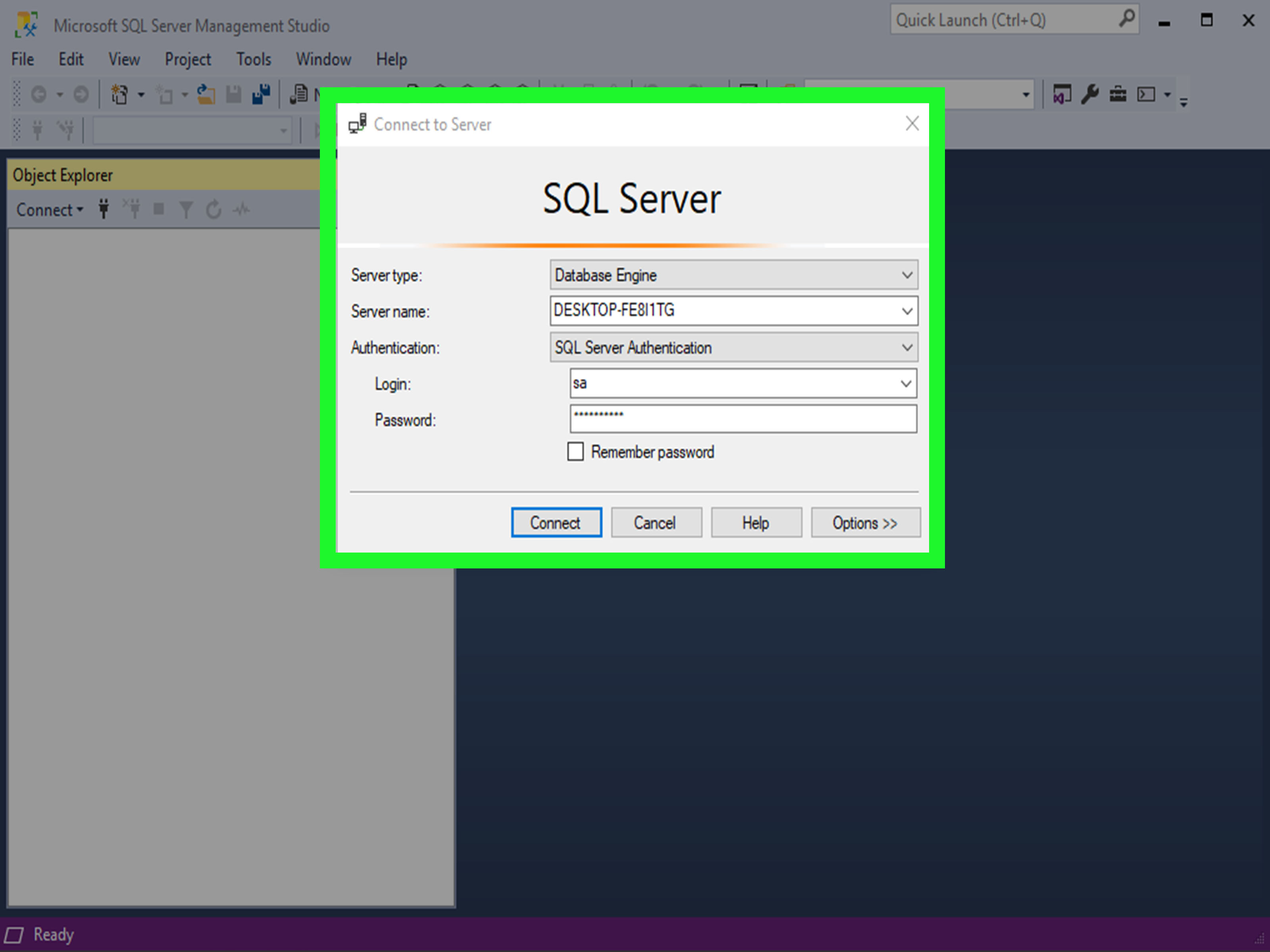
- Connect to the correct SQL Server instance using an account with sysadmin permission.
- In Object Explorer, expand the server.
- Expand Security.
- Expand Logins.
- Right-click sa and select Properties.
- On the General page, enter a new strong password and confirm it.
- Go to the Status page.
- Make sure Login is set to Enabled only if your environment truly requires the
salogin. - Click OK.
After changing the password, test the login from a controlled admin machine. Do not immediately paste the new password into every application config file in the company like confetti. First confirm that the server is using Mixed Mode authentication and that the account is enabled.
Example Scenario
Imagine you inherited a SQL Server instance for an internal reporting app. You can log in using your Windows domain admin account, but the old documentation lists an outdated sa password. In this case, SSMS is the safest route. Connect with Windows Authentication, reset the password under the sa login properties, test it, and update the secure password vault.
Pros and Cons of the SSMS Method
The main advantage is simplicity. You can see the login status, password fields, and security options in one place. The downside is that it requires existing administrative access. If every sysadmin login is gone or broken, SSMS alone may not be enough.
Method 2: Reset SA Password Using T-SQL or sqlcmd
If you prefer commands, scripts, automation, or the quiet joy of solving problems without clicking through windows, you can reset the sa password using T-SQL. This method also requires that you can connect with an account that has permission to alter logins.
Basic T-SQL Command
The core command uses ALTER LOGIN. Here is a simple example:
If the sa account is disabled and you are intentionally enabling it, you can run:
If the login is locked due to password policy enforcement, you may also need to unlock it while assigning a new password:
Using sqlcmd from the Command Line
The sqlcmd utility lets administrators run T-SQL from a command prompt, terminal, batch file, or script. This is helpful on servers where SSMS is not installed or when you need a repeatable process.
Example using Windows Authentication:
For a named instance, the server name usually looks like this:
The -S option specifies the server, -E uses Windows Authentication, and -Q runs the query and exits. Think of sqlcmd as SSMS’s no-nonsense cousin who owns three flashlights and labels every cable.
When to Use This Method
Use T-SQL or sqlcmd when you want speed, automation, or remote administration. It is also useful for repeatable operations in controlled environments, such as development servers, test labs, or documented break-glass procedures.
Security Tip for Command-Line Passwords
Be careful when putting passwords directly in command-line history, scripts, tickets, screenshots, or chat messages. A password in a command prompt can linger in logs or shell history. For production environments, use secure administrative procedures, rotate the password after emergency use, and store the final password only in an approved secrets manager or password vault.
Method 3: Reset SA Password Using Single-User Mode
Single-user mode is the recovery route for a more serious situation: you are locked out of SQL Server as a system administrator. Maybe all sysadmin logins were removed. Maybe a Windows group was deleted. Maybe the only person who knew the login left behind a sticky note that said “database stuff” and nothing else. Helpful? Not exactly.
SQL Server single-user mode allows one administrator connection to the instance. A local Windows administrator can use this mode to regain access, create or restore a sysadmin login, and then reset the sa password.
When to Use Single-User Mode
Use this method only when normal administrative access is unavailable. It is a recovery procedure, not a daily maintenance habit. You should schedule downtime if the instance is used by applications, because restarting SQL Server will disconnect users and services.
General Recovery Flow
- Sign in to the Windows server with a local administrator account.
- Stop SQL Server Agent and other services or applications that may immediately connect to SQL Server.
- Start the SQL Server Database Engine in single-user mode using the
-mstartup option. - Connect quickly using
sqlcmdwith Windows Authentication. - Add a trusted Windows account to the
sysadminrole or reset thesapassword. - Remove the single-user startup option.
- Restart SQL Server normally.
- Test access and document the recovery.
Example Commands for a Default Instance
The exact service name depends on your installation. For a default SQL Server instance, the Windows service is often MSSQLSERVER. The following example shows the general idea:
Then connect locally with sqlcmd:
Once connected, you can reset the sa password:
Or, often better, add a trusted Windows login to the sysadmin role:
After that, restart SQL Server normally:
Named Instance Example
For a named instance such as SQLEXPRESS, the service name often includes the instance name:
Named instances are a common place for small mistakes. If your command fails, verify the actual service name in SQL Server Configuration Manager or the Windows Services console.
Common Single-User Mode Problem
The most annoying issue with single-user mode is that another service grabs the only available connection before you do. SQL Server Agent, monitoring tools, backup agents, application pools, and health checks can all be faster than a human with coffee. Stop those services first. Some administrators use a more specific startup option such as allowing only sqlcmd to connect, depending on the environment and SQL Server version.
Which Method Should You Choose?
Choose the method based on your current access level. If you can log in as a sysadmin and like a visual interface, use SSMS. If you can log in as a sysadmin and prefer scripts, use T-SQL or sqlcmd. If you are locked out and have local Windows administrator rights on the server, use single-user mode as a recovery method.
| Method | Best For | Requires | Risk Level |
|---|---|---|---|
| SSMS | Simple manual reset | Existing sysadmin access | Low |
| T-SQL or sqlcmd | Fast reset, scripting, remote admin | Existing sysadmin access | Low to medium |
| Single-user mode | Locked-out administrator recovery | Local Windows administrator access | Medium to high |
Best Practices After Resetting the SA Password
Use a Strong, Unique Password
A strong sa password should be long, unique, and stored securely. Avoid passwords that contain company names, server names, dates, sports teams, or anything that looks like it was invented by a tired person at 2:00 a.m. Use a password manager or enterprise secrets vault instead.
Disable SA If You Do Not Need It
In many environments, the best sa password strategy is to set a strong password, confirm no application depends on it, and disable the account. Use named administrator accounts instead. This improves auditing because actions can be tied to real people or managed service accounts.
Prefer Windows Authentication Where Possible
Windows Authentication is generally preferred for SQL Server because it integrates with Windows and domain security policies. It also reduces the need to store SQL passwords in application files. For modern environments, fewer shared SQL logins usually means fewer mysteries during an incident review.
Update Applications Carefully
If any application uses sa, consider that a warning sign. Applications should normally use dedicated logins with only the permissions they need. If you must update an application connection string, test it in a maintenance window and monitor error logs afterward.
Audit the Change
After the reset, check SQL Server logs, Windows event logs, job history, and application logs. Confirm that scheduled jobs still run, backups still complete, and no application is failing authentication. A password reset is not finished until the ecosystem around the database is healthy.
Common Errors When Resetting SA Password
Login Failed for User ‘sa’
This may happen if the password is wrong, the login is disabled, Mixed Mode authentication is not enabled, or the server is rejecting SQL Server Authentication. Check the login status and server authentication mode.
Password Validation Failed
SQL Server can enforce password policies for SQL logins. If your new password is too weak or violates local policy, the reset may fail. Use a longer, more complex password and avoid recycled credentials.
Only One Administrator Can Connect
This usually appears during single-user mode when another process has taken the only connection. Stop SQL Server Agent, monitoring services, and applications before starting the instance in single-user mode.
Cannot Find the SQL Server Instance
For named instances, verify the instance name, service name, and connection string. localhost may work for a default instance, while .\SQLEXPRESS or ServerName\InstanceName may be required for a named instance.
Real-World Experiences: Lessons from Resetting SA Password in SQL Server
In real database administration work, resetting the sa password is rarely just a password task. It is usually a small window into the overall health of the SQL Server environment. The password itself is the visible problem, but the deeper issue is often documentation, access control, application design, or forgotten legacy configuration.
One common experience is discovering that an old application uses sa because “that was easier during setup.” It may have worked for years, quietly and dangerously, until someone finally rotated the password. Then the application fails, users complain, and the database team gets blamed for touching “the thing that was working.” The lesson is simple: after you reset the password, look for dependencies. Search connection strings, configuration files, SQL Agent jobs, ETL packages, reporting services, and vendor tools. If anything uses sa, plan to replace it with a dedicated least-privilege login.
Another lesson is that single-user mode is powerful but fussy. The theory sounds simple: start SQL Server with -m, connect, fix access, restart. In practice, another service often grabs the single connection before you can blink. SQL Server Agent is a frequent culprit. Monitoring tools and backup services can also jump in first. The best practical habit is to stop nonessential SQL-related services before starting single-user mode. Keep your sqlcmd command ready so you can connect immediately.
Documentation is another huge factor. A password reset should leave a trail: the reason for the reset, the approver, the administrator who performed it, the time, the affected server, and the post-change test results. This may sound boring, but boring is beautiful in production. When an auditor, manager, or future DBA asks what happened, a clean record turns a stressful event into a normal maintenance note.
Password storage also matters. Do not store the new sa password in a spreadsheet called “final_passwords_REAL.xlsx.” That file name is practically a horror movie title. Use an approved password vault with access logging and role-based permissions. If a temporary emergency password was used, rotate it again after recovery and store only the final approved credential.
Finally, the best long-term experience is needing sa less often. Mature SQL Server environments usually rely on named administrator accounts, Windows groups, service accounts, and properly scoped permissions. The sa login may remain disabled except for rare break-glass scenarios. That approach improves security, auditing, and accountability. Resetting the sa password solves today’s access problem; reducing dependence on sa prevents tomorrow’s surprise fire drill.
Conclusion
Resetting the sa password in SQL Server is straightforward when you choose the right method. Use SSMS for a clean visual reset, T-SQL or sqlcmd for fast command-based administration, and single-user mode only when you are locked out and need authorized recovery. The technical command is only half the job. The other half is testing, documenting, securing, and making sure applications do not depend on an all-powerful login they should never have used in the first place.
The safest SQL Server environments treat the sa login as an emergency tool, not a daily driver. Reset it when necessary, protect it carefully, and whenever possible, replace shared admin access with named accounts and least-privilege permissions. Your database will be safer, your audits will be cleaner, and your future troubleshooting sessions will contain fewer dramatic sighs.

