
Body Care
How to Spoiler an Image on Discord Mobile: 2 Simple Methods
Jun
Note: This guide is based on current Discord behavior and widely used mobile workflows. Discord updates its Android and iPhone apps often, so a button may look slightly different depending on your device, app version, or server settings.
Sending an image on Discord is easy. Sending an image without accidentally ruining a game ending, movie twist, meme punchline, or surprise character reveal? That takes a tiny bit more care. Thankfully, learning how to spoiler an image on Discord mobile is not rocket science. It is more like finding the right button before your thumb gets too excited and hits send.
Discord spoiler images are hidden behind a blur or spoiler cover until someone chooses to tap and reveal them. This makes spoiler tags perfect for screenshots, fan art, game results, anime scenes, puzzle answers, private jokes, and anything else that deserves a dramatic curtain. On mobile, you have two simple methods: use Discord’s built-in Mark as Spoiler option before sending the image, or rename the file so its name starts with SPOILER_.
In this guide, we will walk through both methods for Android and iPhone, explain when each method works best, and cover common problems such as missing spoiler buttons, images sending too fast, and whether you can spoiler an image after it has already been posted. Spoiler alert: that last answer may hurt a little.
What Does “Spoiler an Image” Mean on Discord?
To spoiler an image on Discord means to hide the image preview behind a spoiler warning. Other users will not see the image immediately. Instead, they will see a blurred or covered attachment that they can tap to reveal. This is different from simply warning people in your message with “spoilers ahead,” because the image itself stays hidden until someone actively opens it.
Discord spoiler tags are commonly used in communities built around games, movies, TV shows, books, comics, sports, tech leaks, and fandom discussions. A single screenshot can spoil a final boss, a plot twist, a puzzle solution, or the result of a live event. Using a spoiler tag is a small courtesy that says, “I bring chaos, but politely.”
Quick Answer: How to Spoiler an Image on Discord Mobile
The easiest way to spoiler an image on Discord mobile is to attach the image, tap or long-press the image preview before sending, then choose Mark as Spoiler or tap the eye icon if it appears. Once the image is marked, send the message normally.
If that option does not appear, use the manual file-name method. Rename the image file so the file name begins with SPOILER_, then upload it to Discord. For example, rename dragon-ending.png to SPOILER_dragon-ending.png. Discord recognizes that prefix and treats the attachment as a spoiler.
Method 1: Use Discord’s Built-In “Mark as Spoiler” Option
This is the best method for most users because it is fast, clean, and does not require leaving Discord. The built-in spoiler option is designed for attachments, including images and videos. On many mobile versions of Discord, you can mark the image as a spoiler from the upload preview before you send it.
Steps for Android and iPhone
- Open the Discord app on your phone.
- Go to the server channel, group chat, or direct message where you want to send the image.
- Tap the plus button or image icon near the message box.
- Select the image you want to upload.
- Before sending, look at the image preview in the message box.
- Tap or long-press the image preview.
- Choose Mark as Spoiler, or tap the eye icon if your version shows one.
- Confirm that the image is marked as a spoiler, then tap send.
Once sent, the image should appear hidden behind a spoiler cover. Other users can tap it when they are ready. If they are not ready, they can continue living peacefully in their spoiler-free bubble.
What the Spoiler Button May Look Like
Depending on your app version, the option may appear as Mark as Spoiler, Spoiler Attachment, or an eye-shaped icon. Discord’s interface can vary slightly between Android and iOS. Some users may see a small edit or pencil option on the attachment preview before they can access more upload settings.
The important idea is simple: you must mark the image as a spoiler before sending it. Once your thumb hits send, Discord treats the image as already posted, and spoiler settings are much harder to change.
When Method 1 Works Best
Use the built-in Discord spoiler option when you are uploading directly from your phone gallery, sending one or two images, or posting quickly in a chat. It is also the most beginner-friendly method because you do not have to rename anything. You just select the image, mark it, and send it.
This method is ideal for everyday Discord use: game screenshots, anime panels, surprise announcements, party photos, memes with punchlines, and “do not open unless you finished Episode 8” moments. Basically, if the image might make someone yell “WHY WOULD YOU SHOW ME THAT?” use the spoiler option.
Method 2: Rename the Image File with “SPOILER_”
The second method is the classic manual workaround: rename the file so the file name starts with SPOILER_. Discord recognizes this prefix and marks the uploaded image as a spoiler. This method is especially useful if the mobile app does not show the spoiler option, if the long-press menu refuses to cooperate, or if you are uploading from a file manager rather than the photo picker.
How to Rename an Image on Android
- Open your phone’s file manager app, such as Files, My Files, or another file browser.
- Find the image you want to send.
- Tap and hold the file, then choose Rename.
- Add SPOILER_ to the beginning of the file name.
- Save the new file name.
- Open Discord and upload the renamed image.
For example, if your image is named boss-fight.jpg, rename it to SPOILER_boss-fight.jpg. Keep the file extension, such as .jpg, .png, or .webp, at the end of the file name. Do not rename the extension unless you enjoy confusing your phone for no reason.
How to Rename an Image on iPhone
- Save the image to the Files app if it is only in Photos.
- Open the Files app.
- Find the image file.
- Press and hold the file name, then choose Rename.
- Add SPOILER_ at the beginning of the file name.
- Upload the renamed file to Discord.
On iPhone, this method may require an extra step because images in the Photos app do not always behave like regular renamed files. Saving the image into the Files app gives you more control over the file name before uploading it to Discord.
When Method 2 Works Best
The SPOILER_ file-name method is helpful when Discord mobile does not display the spoiler attachment button, when you are using a file manager, or when you want a reliable backup method. It also works well if you are preparing multiple spoiler images before joining a discussion. Rename them in advance, upload when ready, and enjoy your reputation as the responsible spoiler wizard.
Can You Spoiler an Image After Sending It?
In most cases, no. You should assume that an image must be marked as a spoiler before it is sent. Discord lets you edit message text after posting, but changing the spoiler status of an already uploaded attachment is usually not available in the same way.
If you accidentally send an unspoilered image, the safest fix is to delete the message and resend the image properly marked as a spoiler. Yes, it is annoying. Yes, your group chat may notice. But it is still better than leaving a giant plot twist sitting in the channel like a raccoon in a birthday cake.
How to Spoiler Text with an Image on Discord Mobile
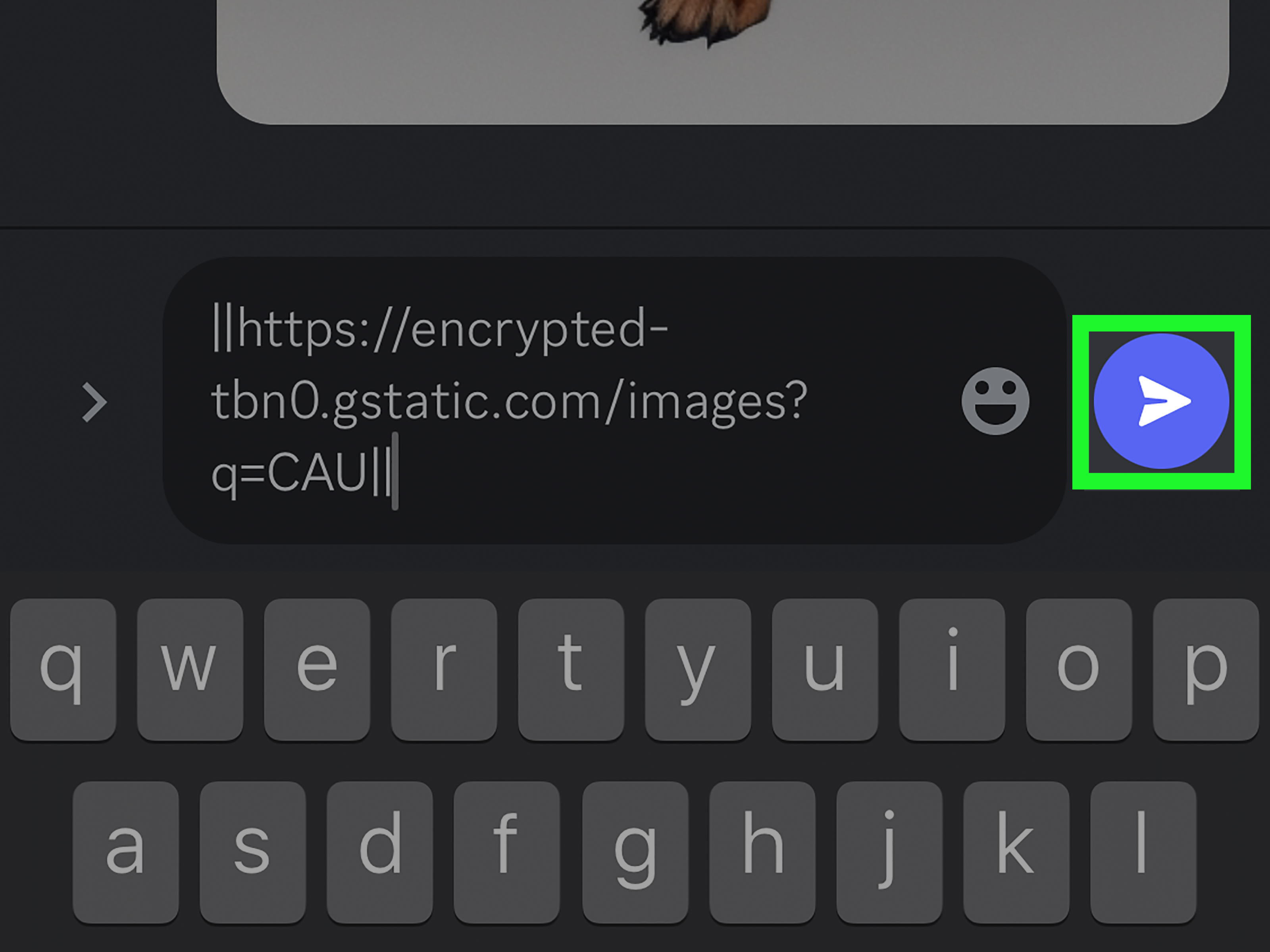
You can also add spoiler text around your image message. To do this, wrap the text in double vertical bars like this:
When sent, the text will be hidden until someone taps it. This is useful when your image needs context but you do not want the caption to spoil anything either. For example:
Text spoilers and image spoilers work together nicely. The image can be hidden, and the caption can be hidden too. It is the digital version of putting a blanket over a secret and then putting a tiny blanket over the label.
Why the Spoiler Option May Not Show on Discord Mobile
If you do not see the Mark as Spoiler option, do not panic. Your phone is probably not cursed. There are several possible reasons.
Your Discord App May Be Outdated
Discord frequently updates its mobile app. If your interface looks different from current tutorials, update Discord through the App Store or Google Play Store. After updating, close and reopen the app before trying again.
You May Be Tapping the Wrong Area
On mobile, the spoiler option usually appears before the image is sent, often from the image preview in the message composer. If you tap the wrong part of the screen, you may only open the keyboard, preview the image, or accidentally send it. The correct move is usually to tap, long-press, or open attachment options from the image preview.
The Image May Be Uploaded Too Quickly
If you choose an image and immediately tap send, you skip the chance to mark it as a spoiler. Slow down for half a second. Your meme will survive the delay. Your friends’ spoiler-free experience might not.
Your Device May Handle Files Differently
Android and iPhone handle images, galleries, file names, and upload menus differently. If Discord’s built-in method is not visible, the SPOILER_ rename method is the practical fallback.
Best Practices for Sending Spoiler Images on Discord Mobile
Using spoiler tags is not only about knowing the buttons. It is also about reading the room. A spoiler image in the right channel is helpful. A spoiler image in the wrong channel can turn a calm server into a courtroom drama with frog emojis.
Use Spoiler Tags in Mixed-Audience Channels
If a server has people watching a show at different speeds or playing a game at different stages, spoiler images are a must. Even if something feels “old” to you, it may be brand new to someone else. Not everyone completed that 80-hour RPG the same weekend it came out. Some of us have laundry.
Add a Clear Warning in the Caption
A spoiler tag hides the image, but a short warning helps people decide whether to tap. Try captions like:
- “Spoiler for Chapter 12.”
- “Final boss screenshot.”
- “Movie ending reveal.”
- “Puzzle solution below.”
You do not need a paragraph. A short label is enough. The goal is to protect people from accidental reveals, not write a legal contract for your screenshot.
Check the Server Rules
Many Discord servers have rules about spoilers. Some require spoiler tags for new episodes, game patches, leaks, tournament results, or major story events. Others have dedicated spoiler channels where everything is fair game. Before posting, check the rules or pinned messages. Future-you will appreciate not getting gently roasted by a moderator.
Do Not Use Spoilers to Hide Rule-Breaking Content
Spoiler tags are for courtesy, not for sneaking prohibited content into a server. If a server does not allow certain images, hiding them behind a spoiler cover does not magically make them allowed. A spoiler tag is not an invisibility cloak. Moderators can still see what you posted.
Discord Spoiler Image Examples
Here are a few realistic examples of when to spoiler an image on Discord mobile:
Gaming Screenshot
You finally beat the secret boss and want to show the victory screen. Great! Mark the screenshot as a spoiler and caption it: “Secret boss reward screen.” Players who have not reached that part can skip it.
Movie or TV Scene
You found a hilarious frame from the season finale. Before posting it in a general chat, spoiler the image and write: “Finale scene spoiler.” People can choose whether to open it.
Puzzle or Quiz Answer
If your server is solving a riddle, puzzle, Wordle-style challenge, or trivia question, spoiler the answer image. Nobody likes opening chat and seeing the solution before their brain has even had coffee.
Surprise Announcement
If you are posting a surprise design, event clue, or reveal image, spoilers can make the reveal more fun. The hidden preview adds suspense, like a tiny red carpet for your attachment.
Common Mistakes to Avoid
Even though Discord spoiler images are simple, a few mistakes happen all the time. Avoid these and your mobile posting life will be smoother.
Sending Before Marking
This is the big one. Always mark the image as a spoiler before sending. If you send first and think later, you may need to delete and repost.
Forgetting the Underscore in SPOILER_
If you use the file-name method, the prefix should be SPOILER_ with an underscore. Write it at the very beginning of the file name. For example, use SPOILER_map-reveal.png, not map-SPOILER-reveal.png.
Changing the File Extension
Do not remove or change the file extension at the end of the image name. Keep .jpg, .png, .gif, or whatever the file already uses. The spoiler prefix belongs at the front, not at the end.
Assuming Every Viewer Has the Same Settings
Discord users may have different display settings, device types, and app versions. Spoiler behavior is generally consistent, but the exact look can vary. A good caption helps reduce confusion.
Which Method Should You Use?
For most people, Method 1 is the winner. Use Discord’s built-in Mark as Spoiler option whenever it appears. It is faster and cleaner than renaming files.
Use Method 2 when the mobile app does not show the spoiler option, when you are working from your file manager, or when you want a dependable backup. The SPOILER_ prefix method may feel old-school, but it is useful. Think of it as the duct tape of Discord spoiler images: not fancy, but it gets the job done.
Extra Experience: What Actually Works Best in Real Discord Mobile Use
After using Discord mobile in busy servers, small friend groups, game communities, and chaotic meme channels, one thing becomes clear: the hardest part is not understanding spoiler tags. The hardest part is remembering to use them before your thumb launches the image into the chat like a tiny digital cannonball.
The built-in spoiler option is the smoothest method when it appears. On a normal day, you pick a photo, long-press the preview, tap Mark as Spoiler, and send it. That workflow feels natural once you do it a few times. The problem is that mobile interfaces are cramped. Discord has to fit channels, messages, reactions, attachments, stickers, GIFs, voice buttons, and your keyboard onto one small screen. Sometimes the option you need is hiding behind a long-press menu, a pencil icon, or a slightly mysterious attachment preview. It is not difficult, but it is easy to miss.
One practical habit is to pause before sending any image that might be sensitive to timing. Ask yourself: “Would this annoy someone who is not caught up?” If the answer is yes, spoiler it. This applies to more than movies and games. Sports results, event announcements, test answers, challenge solutions, and even certain memes can deserve spoiler treatment. In active communities, this little pause saves arguments. It also makes you look considerate, which is useful if your usual personality in chat is “posts raccoon GIFs at 2 a.m.”
The file-name method is less elegant, but it is surprisingly reliable. Renaming an image with SPOILER_ is especially helpful when Discord mobile is acting weird or when you are preparing several images at once. For example, if you are about to post a batch of screenshots from a game ending, renaming the files first can be faster than marking each one individually inside Discord. It is also a good emergency method for people whose app version does not show the spoiler menu clearly.
On Android, the rename method usually feels easier because many Android phones include a visible file manager. You can find the image, rename it, and upload it. On iPhone, the process may feel less direct because Photos is not the same as Files. Saving the image into the Files app first can make renaming easier. It is one extra step, but it beats sending an unhidden spoiler and watching the chat react like you kicked open the door during the final scene of a mystery movie.
A good caption also matters. A spoiler image without context can make people curious enough to tap it accidentally. A caption like “Spoiler for Episode 6 ending” gives a clear warning. It tells people exactly what they are about to reveal. The best spoiler etiquette combines both parts: hide the image and label the topic. That way, nobody has to guess whether the hidden image is a harmless meme or the final page of a story they have been avoiding for three weeks.
Another useful habit is testing in a private channel or direct message if you are unsure. Send a spoiler image to yourself or to a private test server and see how it appears. This is especially helpful after app updates. Discord changes small interface details from time to time, and a 10-second test can prevent a very public “oops.”
In short, the best real-world method is simple: use Discord’s built-in spoiler button when it is available, use the SPOILER_ file-name method when it is not, and always mark images before sending. Spoiler tags are a tiny feature, but in the right moment, they are the difference between being a thoughtful community member and becoming the person everyone side-eyes during movie night.
Conclusion
Learning how to spoiler an image on Discord mobile only takes a minute, but it can save your friends, server members, and fellow fans from unwanted surprises. The easiest method is to attach the image, tap or long-press the preview, and select Mark as Spoiler before sending. If that option is missing, rename the image so the file name starts with SPOILER_, then upload it to Discord.
The golden rule is simple: spoiler first, send second. Whether you are sharing a game ending, a movie reveal, a puzzle answer, or a meme with a dangerous punchline, Discord spoiler images give people the choice to reveal content when they are ready. That is good etiquette, good community behavior, and honestly, good thumb control.

