
Skincare
How to Play Video with the Screen Off on Android: 14 Steps
May
Note: This guide focuses on stable, legal, and practical Android methods, including official background playback, local media playback, battery settings, and safe troubleshooting.
Introduction: Because Your Screen Does Not Need to Be a Campfire
There are plenty of times when you want a video to keep playing on Android while the screen is off. Maybe it is a lecture, a podcast interview, a long music mix, a workout explanation, a language lesson, or one of those “I only need the audio” videos that somehow still has a thumbnail of a person looking shocked at a vegetable. Whatever the case, keeping the screen on wastes battery, heats up the phone, and turns your pocket into a tiny accidental touchscreen casino.
The good news: Android can absolutely handle background audio from videos. The slightly annoying news: the best method depends on where the video comes from. YouTube has different rules from VLC. Local videos behave differently from streaming videos. Some apps keep playing happily with the screen off; others stop the moment your display goes dark, as if your phone has decided the concert is over.
This guide explains how to play video with the screen off on Android in 14 practical steps. We will cover YouTube Premium, YouTube Music, local video files, VLC, picture-in-picture, lock screen controls, battery settings, background data, Bluetooth headphones, and common fixes when playback randomly stops. No shady “install this mystery app from a website that looks like it was designed during a thunderstorm” advice. Just real-world methods that work for everyday Android users.
How to Play Video with the Screen Off on Android: 14 Steps
Step 1: Identify Where the Video Is Coming From
Before changing settings, figure out the source of the video. Is it on YouTube, YouTube Music, a browser, your phone’s storage, Google Drive, Telegram, WhatsApp, a podcast app, or a media player like VLC? This matters because Android itself is not usually the villain. The app decides whether playback can continue when the screen turns off.
For example, a local MP4 file in VLC may continue as audio if the app supports background playback. A YouTube video in the free YouTube app usually will not keep playing with the screen off unless the content type and account features allow it. A podcast inside a podcast app should normally continue playing because that is the whole point of podcasts: people talking while you wash dishes and pretend you are becoming more productive.
Step 2: Use YouTube Premium for Official YouTube Background Play
If your goal is to play YouTube videos with the screen off on Android, the most reliable official method is YouTube Premium. With a Premium membership, videos can continue playing in the background while you use other apps or turn off the screen. This works inside the YouTube mobile app when you are signed in with the account that has the subscription.
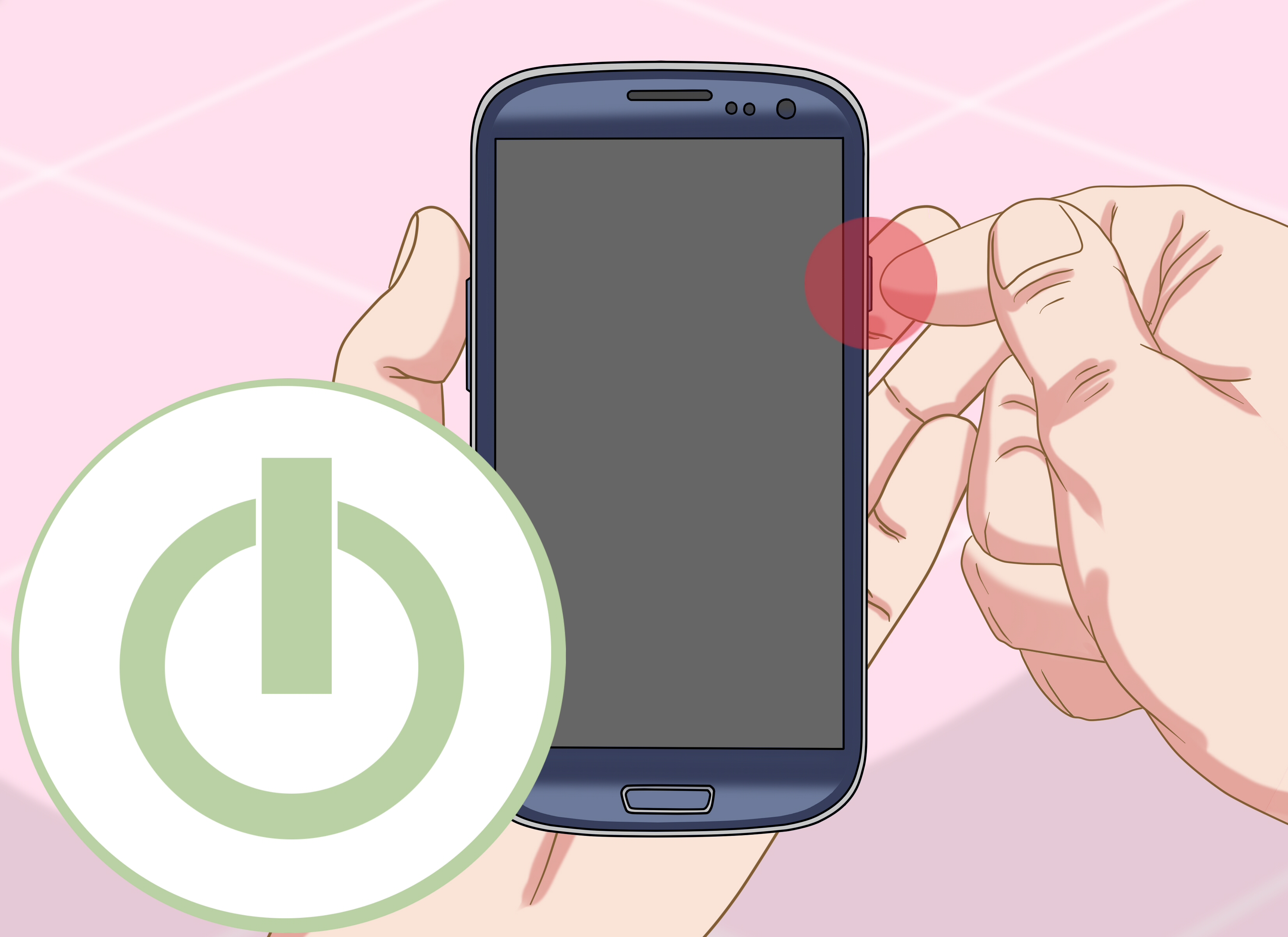
To use it, open the YouTube app, start a video, press the power button to turn off the screen, and listen from the lock screen. You can pause, resume, skip, or adjust playback from lock screen media controls or your connected headphones. It is not the most exciting trick in the world, but it is the one least likely to break after the next app update.
Step 3: Turn On Background Play in YouTube Settings
If you already have YouTube Premium but the video stops when your Android screen turns off, check the background play setting. Open the YouTube app, tap your profile picture, go to Settings, then look for Background & downloads or Background play. Choose Always on if you want videos to keep playing whenever you leave the app or lock the screen.
You may also see an option such as Headphones or external speakers. That setting allows background playback only when your phone is connected to earbuds, headphones, a Bluetooth speaker, or another audio output. It is useful if you do not want videos continuing loudly from your phone speaker while you are in public, because nobody on the bus asked for your 48-minute productivity podcast.
Step 4: Use YouTube Music Premium for Music Videos, Songs, and Podcasts
If the video is really something you only want to hear, such as music, a live performance, a podcast, or a lyric video, try YouTube Music Premium. YouTube Music Premium supports background play, downloads, and audio-only listening for supported content. It is especially useful when you care more about the sound than the moving image.
Open YouTube Music, search for the song, playlist, podcast, or video, start playback, and turn off your screen. If available, use audio-only mode to reduce data use and battery drain. This is often smoother than forcing the regular YouTube app to behave like a music player, because YouTube Music is designed around listening instead of watching.
Step 5: Use Picture-in-Picture When You Still Need the Video Visible
Picture-in-picture, often called PiP, lets a video shrink into a floating window while you use other apps. This is not the same as playing with the screen fully off, but it is helpful when you want to multitask without stopping playback.
On Android, go to Settings, then Apps, choose the video app, and look for Picture-in-picture. Make sure it is allowed. In YouTube, also check the app’s playback settings to confirm PiP is enabled. Start a video, swipe up or press Home, and the video should shrink into a small floating player.
For YouTube Premium users, closing the PiP window may allow the audio to continue in background play mode. For free users, PiP availability depends on the type of content and region. Music content is usually more restricted than general long-form videos.
Step 6: Play Local Video Files with VLC for Android
For videos saved on your phone, VLC for Android is one of the easiest solutions. VLC supports many file formats, including MP4, MKV, AVI, MOV, FLAC, AAC, and more. It can also handle subtitles, network streams, and media folders, making it a solid choice for people who store lectures, tutorials, movies, or downloaded personal videos on their device.
Install VLC from the Google Play Store, open it, allow file access, and browse to your video. Start playing the video, then look for VLC’s playback options. Depending on the version and device, you may be able to play the video as audio or continue playback in the background. Lock the screen and check whether the audio continues from the lock screen controls.
This method works best for files you legally own or have permission to store. It is also handy for offline use, especially when traveling, studying, or trying to survive a long bus ride with a phone battery that has the emotional stability of a soap bubble.
Step 7: Use a Podcast App When the “Video” Is Mostly Talking
Many YouTube-style videos are basically podcasts wearing a video costume. If the creator publishes the same episode as a podcast, use a podcast app instead. Apps like Spotify, Pocket Casts, Podcast Addict, AntennaPod, and YouTube Music podcast features are built for screen-off listening.
Search for the show name in your podcast app. If it exists there, subscribe and play the episode directly. The experience is usually better: lock screen controls work, playback resumes more reliably, downloads are easier, and you do not need to keep a video stream running just to hear people discuss microphones, productivity, finance, or why everyone suddenly owns an air fryer.
Step 8: Avoid Relying on Old Browser Workarounds
For years, many Android users played YouTube videos in a mobile browser, switched to desktop mode, locked the screen, and resumed playback from the lock screen. That workaround was popular because it sometimes allowed YouTube audio to continue without Premium.
Today, that method is much less reliable. YouTube has been limiting background playback through mobile browsers for non-Premium users. Some browser tricks may still work temporarily on certain devices, browsers, or regions, but they can stop without warning. If you are writing a guide for long-term use, do not build your whole plan around a loophole that may disappear faster than your phone charger when guests come over.
For stable results, use YouTube Premium, YouTube Music Premium, a podcast app, or a media player that supports background playback for local files.
Step 9: Check Android Battery Settings for the App
If a video starts playing with the screen off but stops after a few minutes, Android’s battery management may be restricting the app. Modern Android phones try to save power by limiting background activity. That is helpful for random apps you forgot you installed in 2021, but not so helpful when you are trying to play a two-hour lecture.
Open Settings, go to Apps, choose the app you use for playback, and tap Battery or App battery usage. Select Unrestricted or allow background usage if the option is available. The wording varies by phone brand, but the idea is the same: let the app keep working when the screen is off.
Use this carefully. Giving every app unrestricted battery access can reduce battery life. Give the privilege only to apps you trust and actually use for background audio or video playback.
Step 10: Disable “Sleeping Apps” or Background Limits on Samsung Phones
Samsung Galaxy phones include extra battery tools such as Sleeping apps, Deep sleeping apps, and Never sleeping apps. If your media app is placed in a sleeping or deep sleeping list, it may stop playing when your screen turns off.
On many Samsung devices, go to Settings, then Battery, then Background usage limits. Remove your media app from sleeping or deep sleeping lists. If needed, add it to Never sleeping apps. This tells One UI not to aggressively pause it in the background.
This is one of the most common fixes for people who say, “It works for 30 seconds, then stops.” Your phone is not haunted. It is just being aggressively responsible with battery life.
Step 11: Allow Background Data for Streaming Apps
Streaming video or audio needs an internet connection. If background data is disabled, playback may stop when you leave the app or lock the screen. This can happen with YouTube, YouTube Music, VLC network streams, podcast apps, or browser-based playback.
Go to Settings, open Apps, select your media app, and check Mobile data or Data usage. Make sure background data is allowed. If you use Data Saver, add the app as an exception or allow unrestricted data usage for that app.
This is especially important when listening on mobile data. On Wi-Fi, the problem may be less noticeable. On cellular, Android may try to save your data plan like it is guarding a treasure chest.
Step 12: Keep the App Updated
Background playback issues can come from outdated apps. Update YouTube, YouTube Music, VLC, your browser, or your podcast app through the Google Play Store. Also install Android system updates when they are available.
App updates often fix playback bugs, lock screen control problems, Bluetooth interruptions, and compatibility issues with newer Android versions. If background play used to work and suddenly does not, an update may fix it. Of course, updates can also change features, which is why official methods are more dependable than tricks.
Step 13: Use Bluetooth Headphones or Wired Earbuds for Better Controls
Many Android users have better screen-off playback when using headphones, earbuds, or a Bluetooth speaker. Some apps offer background play only with an external audio device, and hardware controls make it easier to pause, resume, or skip without waking the phone.
Connect your headphones, start the video or audio, turn off the screen, and test the play/pause button. If playback stops, press play from the headphones or lock screen media controls. This can restart a paused stream without fully unlocking your phone.
One practical tip: if your Bluetooth earbuds keep disconnecting, remove them from Bluetooth settings and pair them again. Background playback problems are sometimes actually Bluetooth connection problems wearing a fake mustache.
Step 14: Restart, Clear Cache, or Reinstall if Nothing Works
If everything looks correct but playback still stops, try the classic troubleshooting ladder. First, close the app fully and open it again. Next, restart your Android phone. Then clear the app cache by going to Settings, Apps, choosing the app, and tapping Storage & cache. Select Clear cache, not clear data, unless you are comfortable signing in again and resetting preferences.
If the problem continues, uninstall and reinstall the app. For YouTube Premium, confirm that you are signed into the correct account, your membership is active, and background play is enabled. Also check whether the specific video supports background playback. Some content may have restrictions, even for subscribers.
Best Methods by Situation
For YouTube Videos
The best official method is YouTube Premium. Open the YouTube app, start the video, lock the screen, and control playback from the lock screen or headphones. If it fails, check background play settings, membership status, battery restrictions, and app updates.
For Music Videos and Songs
YouTube Music Premium is often the better choice. It supports background listening and audio-only playback for music-focused content. This can save battery and reduce the feeling that you are using a video app as a very complicated radio.
For Local Video Files
Use VLC for Android or another media player with background audio support. This is ideal for offline lectures, saved tutorials, personal recordings, and downloaded files you have the right to use.
For Podcasts and Interviews
Look for the audio version in a podcast app. Podcast apps are designed for screen-off listening, downloads, speed controls, queues, sleep timers, and lock screen playback.
Common Problems and Quick Fixes
The Video Stops Immediately When I Lock the Screen
This usually means the app does not support screen-off playback for that content, the feature requires a subscription, or background play is disabled. For YouTube, confirm Premium status and background play settings. For local files, switch to a player like VLC.
The Audio Plays for a Minute, Then Stops
Battery optimization is the likely suspect. Set the app’s battery usage to unrestricted or remove it from sleeping app lists. Also check Data Saver and background data settings.
Lock Screen Controls Are Missing
Make sure notifications are enabled for the app. Android often shows media controls through notifications. If notifications are blocked, the controls may disappear, making it harder to pause or resume playback without unlocking the phone.
Bluetooth Playback Keeps Cutting Out
Reconnect the Bluetooth device, charge the earbuds, remove and re-pair them, and test another media app. If the problem happens across all apps, it is probably a Bluetooth or device issue rather than a YouTube or VLC problem.
Battery-Saving Tips for Screen-Off Video Playback
Playing a video with the screen off already saves a lot of battery because the display is usually one of the biggest power users on a phone. Still, you can do more. Lower the volume if you are using phone speakers, use Wi-Fi instead of mobile data when possible, download content for offline playback when allowed, and choose audio-only mode when available.
For long sessions, avoid streaming high-resolution video if you only need audio. A 4K video playing in the background is like hiring a moving truck to deliver a sandwich. It works, but it is not exactly efficient.
Experience-Based Tips: What Actually Feels Best in Daily Use
After using Android phones for screen-off listening in real life, the biggest lesson is simple: choose the tool that matches the content. When I want to listen to a YouTube lecture while walking, YouTube Premium is the least stressful option. I can lock the screen, put the phone in my pocket, and use earbud controls without fighting the app every five minutes. It feels boringly reliable, which is exactly what you want from background playback.
For long educational videos, I usually make a small queue before locking the screen. That way, I am not constantly unlocking the phone, searching for the next video, and getting distracted by messages, notifications, or the sudden urge to reorganize my entire home screen. Background playback is not just about saving battery; it is also about reducing digital temptation. When the screen is off, the phone becomes a listening device instead of a glowing rectangle full of side quests.
For local videos, VLC is often the most flexible choice. It handles weird file formats better than many default gallery apps. If you have recorded a class, saved a tutorial, or transferred a video from your computer, VLC can usually open it without complaining. The trick is to test playback before you actually need it. Do not wait until you are boarding a plane or starting a study session to discover that your file has no audio or your app does not support background play.
For podcasts, I strongly prefer a real podcast app over video playback. Podcast apps remember progress, allow downloads, support speed changes, and usually behave perfectly with the screen off. If the content is available as a podcast, that is almost always the cleaner experience. YouTube is great for discovery, but podcast apps are better for listening while cooking, commuting, exercising, or pretending to clean while mostly moving objects from one table to another.
Another experience-based tip: check battery settings early. Many Android playback problems are not caused by the media app at all. The phone is simply trying to save power by stopping background activity. This happens more often on phones with aggressive battery management. If your audio stops after 30 seconds, one minute, or whenever the screen locks, look at battery restrictions before blaming the app. On Samsung phones, the sleeping apps feature is especially worth checking.
Bluetooth also matters more than people think. Cheap earbuds with unstable connections can make it seem like the app is broken. If playback cuts out randomly, test with the phone speaker or a different pair of headphones. If the problem disappears, congratulations: your video app has been falsely accused, and your earbuds are the drama.
Finally, be realistic about browser tricks. They are tempting because they sound free and clever, but they are not dependable. A method that works today may vanish after a YouTube update, browser update, or server-side change. If screen-off playback is something you use every day, official background play, audio-only services, podcasts, and local media players will save you time and frustration.
Conclusion
Learning how to play video with the screen off on Android is really about choosing the right playback path. For YouTube, YouTube Premium is the most stable official option. For music and podcasts, YouTube Music Premium or a dedicated podcast app may be better. For local videos, VLC for Android is a flexible and reliable choice. And when playback stops unexpectedly, battery restrictions, background data, sleeping app settings, app updates, and Bluetooth issues are the first places to check.
The screen does not need to stay awake just because your ears are busy. Set up the right app, allow background playback, lock your phone, and enjoy the audio without draining your battery or accidentally tapping seventeen buttons in your pocket.

