
Body Care
How to Pin Someone on Zoom: 6 Steps
Jun
If Zoom meetings had a dating profile, “active speaker view” would say: fun, spontaneous, and occasionally chaotic. One second you are watching your boss explain the quarterly plan, and the next your screen jumps to Kevin coughing into his microphone like he is auditioning for a Victorian novel. That is exactly why learning how to pin someone on Zoom is such a useful little power move.
Pinning lets you keep one person’s video front and center on your own screen, even when someone else starts talking, sneezing, or dramatically rustling snack bags. It is one of the simplest Zoom features, but it makes a huge difference in webinars, classes, interviews, team meetings, and any call where you want to focus on one face instead of letting Zoom play video roulette.
In this guide, you will learn how to pin someone on Zoom in 6 steps, when to use it, how it differs from spotlighting, what to do on desktop and mobile, and how to fix the most common “why is this not working?” headaches. We will also cover real-world situations where pinning is more helpful than people realize, especially for presentations, accessibility, and meetings where attention matters.
What Does It Mean to Pin Someone on Zoom?
Before jumping into the steps, let’s clear up the big misunderstanding. When you pin a participant on Zoom, you are changing your personal layout only. You are telling Zoom, “Please keep this person visible for me, no matter who else is speaking.” You are not changing what everyone else sees.
That makes pinning perfect for situations like these:
- Watching a presenter during a training session
- Keeping a teacher or interviewer visible
- Following a sign language interpreter
- Staying focused during a panel discussion
- Reducing visual distractions in large meetings
If you want everyone in the meeting to see the same person as the main video, that is not pinning. That is called spotlighting, and only the host or co-host can do it. Think of it this way: pinning is personal, spotlighting is public.
How to Pin Someone on Zoom: 6 Steps
Step 1: Join the Zoom Meeting and Switch to the Best View
Start by joining your Zoom meeting through the desktop app or mobile app. If you are on a computer, pinning is easiest when you are in Gallery View, because you can quickly see multiple participant tiles and choose the person you want. On mobile, you usually need at least three participants and must swipe into Gallery View before pinning becomes available.
If you are only seeing the active speaker, do not panic. Zoom is not broken. It is just being overly enthusiastic. Switch your layout so you can actually spot the participant you want to pin.
Step 2: Find the Participant You Want to Keep on Screen
Locate the person whose video you want to prioritize. This could be a presenter, professor, job interviewer, client, interpreter, or the one teammate who always explains things without sounding like they learned communication from a toaster manual.
Make sure their camera is on. If their video is off, you will not really be “pinning” much of anything beyond a name tile. Technically possible in some layouts, sure. Helpful? Not especially.
Step 3: Open the Video Options Menu
On desktop, hover your mouse over that participant’s video tile. You should see a three-dot menu or “More” option appear in the upper-right corner. Click it.
On mobile, press and hold the participant’s video tile. That long-press gesture opens the action menu where Zoom hides the good stuff.
If you do not see the menu, give your cursor a moment and make sure you are using the Zoom app rather than assuming every browser feature works exactly the same way. Zoom’s web experience can be more limited than the desktop app, so the desktop client is still the safest choice for full meeting controls.
Step 4: Click “Pin” or “Pin Video”
Once the menu opens, choose Pin or Pin Video. The wording may vary slightly depending on device and app version, but the goal is the same.
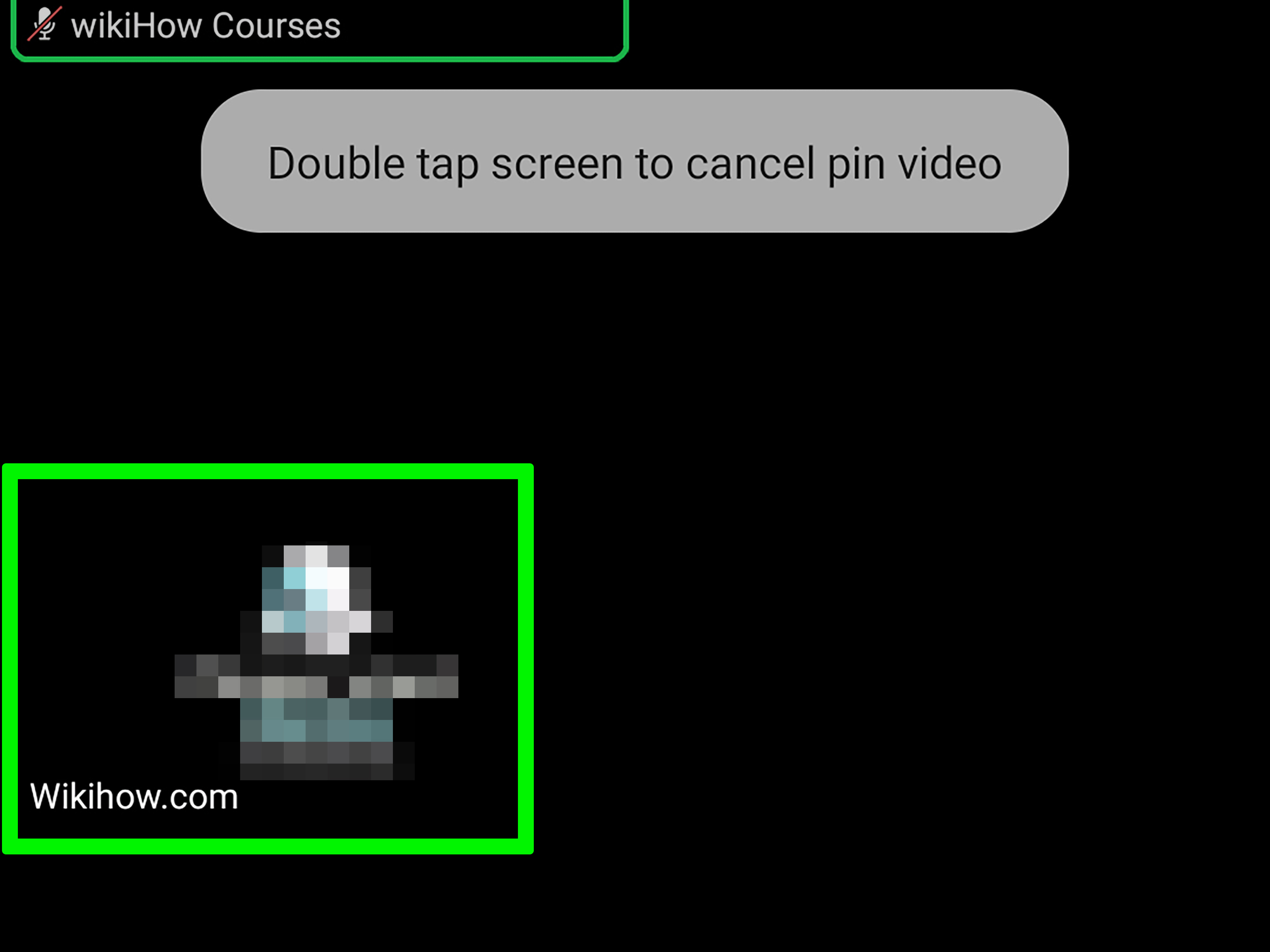
After you click it, Zoom locks that participant into your main view. Even if someone else starts talking, your pinned person stays put. No more bouncing between speakers. No more accidental close-ups of someone’s forehead. No more trying to follow a presentation while Zoom behaves like a caffeinated squirrel.
Step 5: Adjust Your Screen for Better Focus
Once someone is pinned, take a second to make the layout work for you. On desktop, you may be able to resize the Zoom window, move panels, or combine pinning with side-by-side screen sharing depending on what is happening in the meeting. If your host has enabled multi-pin, you may also be able to pin more than one participant, up to nine total.
This is especially useful in scenarios like:
- A speaker plus a sign language interpreter
- A teacher plus a student presenter
- A moderator plus two panelists
- A screen share plus one essential face tile
For many users, this is where Zoom becomes dramatically easier to follow. Instead of letting the platform decide what matters, you decide.
Step 6: Remove the Pin When You Are Done
When you no longer want that participant locked in place, remove the pin. On desktop, click Remove Pin from the pinned video. On mobile, tap and hold the pinned tile and select Remove Pin.
Zoom will then return to its usual active speaker behavior. In other words, the chaos politely resumes.
How to Pin Someone on Zoom on Desktop
If you want the fast version for computers, here it is:
- Join the meeting in the Zoom desktop app
- Switch to Gallery View if needed
- Hover over the participant’s video
- Click the three dots
- Select Pin
- Click Remove Pin later to undo it
This is the most common method and usually the smoothest. If you attend a lot of webinars, classes, remote training sessions, or interviews, the desktop app is the best place to use the Zoom pin video feature.
How to Pin Someone on Zoom on Mobile
On the Zoom mobile app for iPhone or Android, the process is slightly different:
- Join the Zoom meeting
- Swipe left to enter Gallery View if there are at least three participants
- Tap and hold the participant’s video tile
- Select Pin
- Keep them in view while others speak
- Tap and hold again to remove the pin when finished
If you are trying to pin someone on a phone and it is not working, the issue is often simple: not enough visible participants, not in Gallery View, or using a meeting layout that does not expose the pin option clearly.
Pin vs Spotlight on Zoom: What Is the Difference?
This is the question people ask right after “Where did the button go?”
Pinning affects only your screen. It is ideal when you want to stay focused on someone specific.
Spotlighting affects the whole meeting and is controlled by the host or co-host. It is ideal when everyone should see the same speaker, presenter, or interpreter.
If you are a regular participant and just want to control your own experience, use pinning. If you are hosting a large call and want to guide the room, use spotlighting instead.
When Pinning Someone on Zoom Is Actually Helpful
For Online Classes
Students often pin an instructor or interpreter to avoid constant layout changes. It keeps the lesson easier to follow and helps reduce attention fatigue.
For Job Interviews
Pinning the interviewer can help you stay visually grounded. Instead of looking around the screen every time another person joins or makes noise, you keep the key speaker front and center.
For Team Meetings
If one person is leading the update, pinning them creates a cleaner, less distracting experience. This is especially useful during executive briefings, training calls, or status meetings where clarity matters.
For Accessibility
Pinning is incredibly important for users who rely on interpreters or need consistent visual access to a specific speaker. In many real-world settings, multi-pin makes it possible to keep both an interpreter and presenter visible at once.
Why You Might Not Be Able to Pin Someone on Zoom
If the pin option is missing, there are a few likely reasons:
- You are using a browser-based Zoom session with fewer controls than the app
- You are not in the right view, especially on mobile
- There are not enough participants for certain layout options
- Your app version is outdated
- The host has not enabled multi-pin for extra pins beyond the default behavior
- You are in a very large meeting where pinning rules can change
In plain English: sometimes the problem is not you. It is Zoom being Zoom, and sometimes it just wants an update.
Best Tips for Using Zoom Pin Video Like a Pro
- Update Zoom regularly. Newer versions support better pinning behavior and multi-pin options.
- Use the desktop app when possible. It usually offers the most consistent feature set.
- Switch to Gallery View first. It is much easier to choose who to pin.
- Use multi-pin for complex meetings. This is ideal for panels, interpreters, and teaching environments.
- Do not confuse pinning with recording behavior. Local and cloud recordings can behave differently depending on layout and host settings.
- Try side-by-side viewing during screen sharing. This helps when you need both the content and a key speaker visible.
Common Questions About How to Pin Someone on Zoom
Can everyone pin someone on Zoom?
Usually yes for a single pin in normal meetings, but feature limits can vary by meeting size, app version, and whether multi-pin is enabled.
Can I pin more than one person?
Yes, with multi-pin, up to nine participants can be pinned in supported situations. In some meetings, the host may need to allow that feature.
Does pinning affect other participants?
No. Pinning only changes your personal view.
Does pinning work during screen sharing?
Often yes, especially when using Zoom’s layout controls wisely, though the exact viewing experience can depend on your device and settings.
Can I pin someone in Zoom from a browser?
Zoom’s web experience can be more limited than the desktop app, so if pinning is essential, the desktop or mobile app is the safer bet.
Final Thoughts
Learning how to pin someone on Zoom is one of those tiny skills that pays off immediately. It takes seconds to do, but it can make meetings feel more organized, more accessible, and far less distracting. Whether you are following a teacher, focusing on a presenter, tracking an interpreter, or just trying to avoid getting visually bounced around by every cough and keyboard clack in the meeting, pinning gives you control.
The six steps are simple: join the meeting, find the participant, open the menu, click pin, adjust your view, and remove the pin when you are done. That is it. No advanced Zoom wizardry. No secret handshake. Just one useful feature doing exactly what it should.
And in the wild world of video calls, that is honestly kind of beautiful.
Real-World Experiences With Pinning on Zoom
In real life, the best part about pinning someone on Zoom is not that it looks fancy. It is that it quietly removes friction. People usually discover it after one frustrating meeting where the screen keeps jumping at the worst possible moments. A manager starts presenting numbers, someone else coughs, and suddenly the whole visual focus shifts. After that happens a few times, pinning stops feeling like an optional feature and starts feeling like basic survival.
Teachers often get the biggest benefit from it. In virtual classes, students can pin the instructor so the lesson stays visually stable even when classmates unmute, react, or accidentally create little bursts of chaos. It sounds minor, but for students trying to concentrate, especially in long classes, that stability matters. A pinned teacher is easier to follow than a screen that changes every ten seconds like a confused TV director.
Remote workers feel the same way during presentations. Imagine a product demo where one person is walking the team through new features. Without pinning, Zoom may keep shifting to whoever clears their throat, laughs, or forgets they are not muted while making coffee. Pinning the presenter turns the meeting into something more watchable and more professional. It does not change the content, but it absolutely improves the experience of following it.
Pinning is also surprisingly helpful in job interviews. Candidates often feel less scattered when they can keep the interviewer visible in one place instead of searching around the screen every time another panel member speaks. It creates a steadier visual anchor, which can make eye contact feel more natural and answers feel more focused. In stressful moments, small design choices matter, and pinning is one of those small choices.
Accessibility is where the feature becomes even more meaningful. For participants working with sign language interpreters or caption support, pinning is not just convenient. It can be essential. Being able to keep an interpreter in view while still following the main speaker changes the meeting from awkward to usable. In that context, multi-pin is not a bonus feature. It is a practical tool that supports equal access.
Even family calls benefit from it. Grandparents trying to watch one child open birthday gifts, relatives following the bride and groom during a virtual wedding, or parents keeping a speaker visible during a school meeting all use pinning for the same reason: they want the call to make sense visually. And that is the real story here. Pinning does not make Zoom magical. It just makes Zoom behave more like a human would. “Yes,” it says, “I understand. That is the person you actually care about right now.”

