
Beauty Unlocked
4 Ways to Copy and Paste in Minecraft
Jun
Copying and pasting in Minecraft sounds like it should be as simple as pressing Ctrl+C and Ctrl+V. Sometimes it is. Other times, you are staring at a command block, a half-finished castle, and a suspiciously placed creeper wondering why your “simple shortcut” has turned into a full engineering degree. The good news is that Minecraft offers several ways to copy and paste, depending on what you want to duplicate: text, coordinates, blocks, builds, or entire structures.
This guide explains four practical ways to copy and paste in Minecraft: using clipboard shortcuts for text and commands, copying coordinates, cloning builds with the /clone command, saving structures with structure blocks, and using WorldEdit for large creative projects. Yes, that is technically more than four tools, but Minecraft is a sandbox, not a tax form. We are grouping related methods so you can choose the fastest option for your world, server, or creative chaos.
Whether you play Minecraft Java Edition, Minecraft Bedrock Edition, or build with plugins and mods, learning how to copy and paste can save hours of repetitive block placing. Your wrists will thank you. Your villagers will not, because they are still trapped in a hole somewhere.
Why Copy and Paste Matters in Minecraft
Minecraft is famous for creativity, but creativity often comes with repetition. A wall pattern, redstone circuit, tower floor, castle window, command string, or coordinate set may need to be repeated dozens of times. Building everything by hand is satisfying at first, then slowly becomes the digital version of folding laundry forever.
Copy and paste tools solve that problem. They help you move faster, reduce mistakes, and test ideas without destroying hours of work. For builders, copying a section of a house lets you make symmetrical designs. For command users, pasting long commands prevents typos. For map creators, structure blocks and WorldEdit make it possible to duplicate, move, rotate, and reuse builds across areas or even worlds.
The key is choosing the right method. Copying text is not the same as copying blocks. Copying a small wall with /clone is not the same as saving a reusable building with a structure block. And copying a massive cathedral with WorldEdit is not the same as casually duplicating three oak planks, unless your cathedral is very disappointing.
Method 1: Copy and Paste Text, Commands, and Coordinates
The simplest way to copy and paste in Minecraft is with regular text. This is especially useful for commands, server messages, seeds, coordinates, signs, command blocks, and chat. If you have ever typed a long command by hand and missed one bracket, you already understand why this matters.
How to Paste Text in Minecraft Java Edition
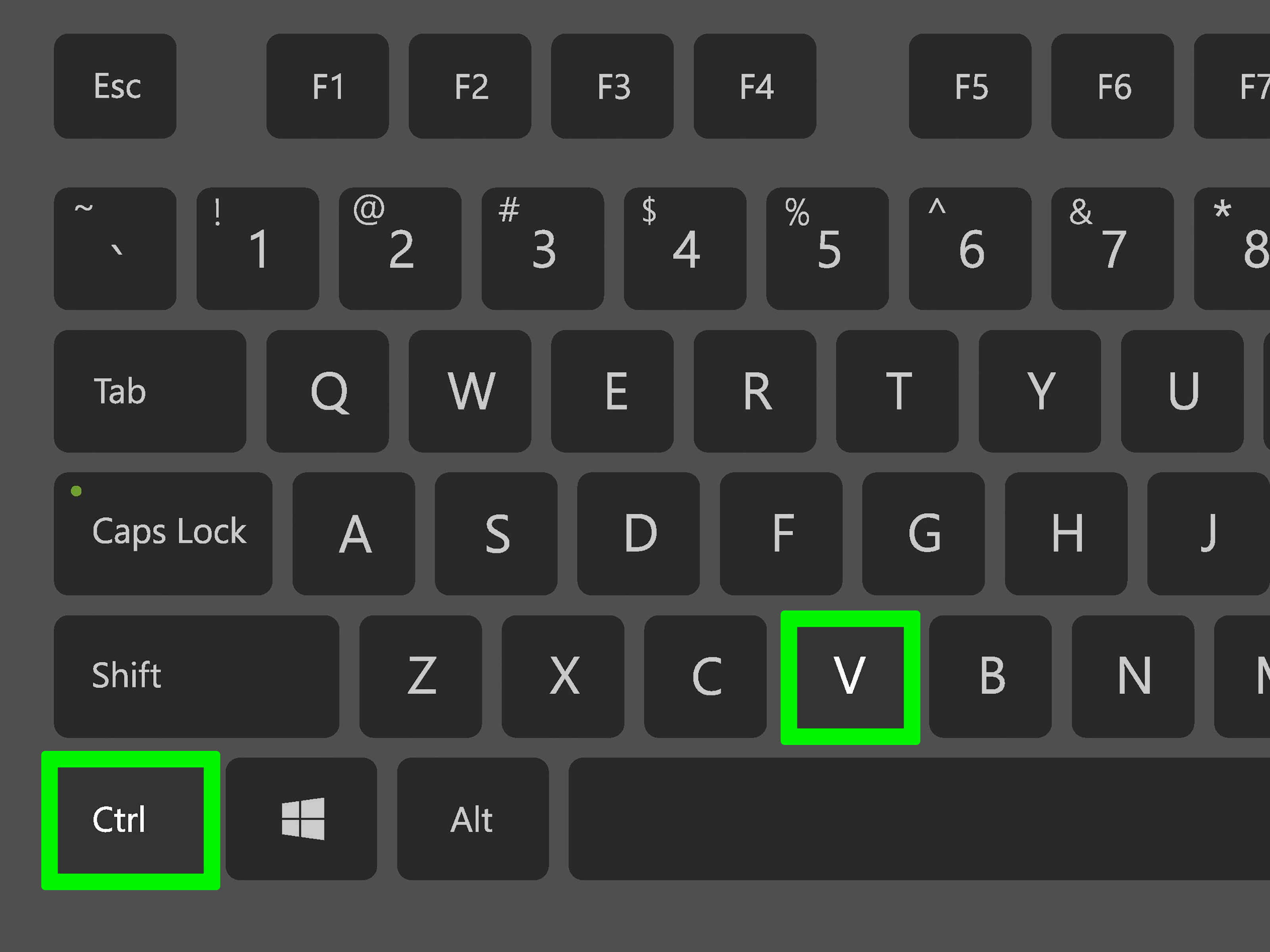
In Minecraft Java Edition on Windows, you can usually paste copied text into chat or command fields with Ctrl + V. On macOS, use Command + V. Open chat with T or open the command field with /, then paste your copied text. This works well for short commands, teleport coordinates, server addresses, and command block instructions.
For example, you might copy this command from a text file:
Then open Minecraft chat, paste it, and press Enter. That is far better than typing it manually while your friend yells, “Hurry up, the skeleton has a bow!”
How to Copy Coordinates in Bedrock Edition
Minecraft Bedrock creators can also use coordinate-copying tools when available in Creator settings. The Copy Coordinate UI is designed to help players capture local coordinates or the block they are looking at, then paste those coordinates into chat or command blocks. This is useful for commands like /tp, /fill, /clone, and structure placement.
When using commands, coordinates are the difference between “perfectly placed castle gate” and “why is my house inside a mountain?” Copying them directly reduces errors and keeps your builds aligned.
Best Uses for Text Copy and Paste
- Pasting long commands into chat or command blocks
- Copying teleport coordinates
- Saving command templates in a text editor
- Sharing server addresses or world seeds
- Repeating text for signs, books, or custom map instructions
Tip: If pasting does not work, make sure your cursor is active in the chat box or command field. Also check whether you are using the correct shortcut for your operating system. Minecraft is powerful, but it still cannot paste into a box you have not selected. It is blocky, not psychic.
Method 2: Use the /clone Command to Copy Builds
The /clone command is one of the most useful built-in ways to copy and paste blocks in Minecraft. It copies a rectangular area from one location and places it somewhere else. This is ideal for duplicating walls, floors, towers, farms, bridges, redstone machines, or small buildings.
The basic idea is simple: choose two opposite corners of the area you want to copy, then choose the destination where the copied area should appear. In Bedrock Edition, the general format looks like this:
Here is a simple example:
This command copies the blocks between coordinates 0 64 0 and 10 70 10, then pastes them starting at 20 64 0. Think of it like selecting a rectangular chunk of your world and saying, “You, but over there.”
Understanding Clone Modes
The /clone command can do more than basic copying. It includes options that control what gets pasted and how the original area behaves.
- Replace: Copies all blocks, including air, into the destination area. This is the default behavior in many cases.
- Masked: Copies only non-air blocks, leaving existing destination blocks untouched where the source has air.
- Filtered: Copies only a specific block type, such as stone, glass, or diamond blocks.
- Move: Copies the area and clears the original, like cutting and pasting instead of copying and pasting.
- Force: Allows cloning even when source and destination areas overlap.
- Normal: Performs a standard clone operation without special overlap behavior.
For example, to copy only non-air blocks near you, you might use:
The tilde symbol means “relative to my current position.” This makes the command flexible because you do not always need exact world coordinates. It also makes you feel like a wizard, which is half the fun.
When to Use /clone
Use /clone when you want a fast, built-in, command-based way to duplicate blocks without installing anything. It is excellent for Creative mode builders, redstone testers, map makers, and players who want symmetry without hand-building every detail twice.
However, /clone works best when the source and destination areas are loaded and reasonably sized. It is not always the best tool for moving huge builds across worlds. For that, structure blocks or WorldEdit are usually better.
Method 3: Use Structure Blocks to Save and Load Builds
Structure blocks are another official Minecraft tool for copying and pasting builds. Instead of instantly copying blocks from one location to another like /clone, structure blocks let you save a structure and load it later. This makes them especially useful for reusable houses, map assets, minigame rooms, decorative pieces, and repeated builds.
To get a structure block, you usually need Creative mode and commands enabled. Use:
Place the structure block near the build you want to copy, open its interface, and switch it to Save mode. From there, you can set the size and offset of the selection box. The size determines how large the saved area is, while the offset controls where that area begins relative to the structure block.
How to Save a Structure
- Enter Creative mode and make sure commands are enabled.
- Use
/give @s structure_block. - Place the structure block near the build.
- Open it and choose Save mode.
- Adjust size and offset until the bounding box covers the build.
- Name the structure with lowercase letters, numbers, underscores, or hyphens.
- Click Save.
Once saved, the structure can be loaded with another structure block in Load mode. In Bedrock Edition workflows, structures can also be exported as .mcstructure files, which helps with moving builds between worlds or saving assets for future projects.
How to Load a Structure
- Place a structure block where you want the copy to appear.
- Switch the block to Load mode.
- Enter the saved structure name exactly.
- Preview the bounding box and adjust placement if needed.
- Click Load to paste the structure into the world.
Structure blocks are great when you want more control and reusability than /clone. They are also useful for map creators who repeatedly use the same rooms, arenas, trees, houses, or decorative structures. Build once, save it, paste it later. It is like meal prep, except the meal is a medieval watchtower.
Method 4: Use WorldEdit for Fast Copying and Pasting
WorldEdit is a popular Minecraft building tool for Java Edition servers and modded environments. It is not part of vanilla Minecraft, but it is widely used because it makes large-scale building dramatically faster. With WorldEdit, you can select an area, copy it to a clipboard, paste it somewhere else, rotate it, flip it, save it as a schematic, and reuse it later.
The basic workflow looks like this:
Many builders use the WorldEdit wand, usually a wooden axe, to mark two corners of a selection. After selecting the region, //copy stores it in your session clipboard. Then //paste places it relative to your current position.
The Important WorldEdit Detail Beginners Miss
WorldEdit remembers your position relative to the copied build. That means where you stand when you type //copy affects where the build appears when you paste it. If you stand five blocks in front of a door while copying, the pasted version will appear five blocks in front of you later. This is incredibly useful once you understand it and deeply confusing until you do.
For cleaner pasting, stand in a memorable spot before copying. For example, stand at the front-left corner of a building or at the center of a floor. Then paste from a similar reference point. Builders who ignore this rule often paste castles into cliffs, trees, oceans, or their own faces. Minecraft forgives many things; geometry does not.
Useful WorldEdit Copy and Paste Commands
//copycopies the selected region.//cutcopies the region and removes it from the original location.//pastepastes the copied region relative to your position.//paste -apastes without air blocks, helping preserve existing terrain.//rotate 90rotates the copied build.//flipmirrors the copied build.//schem savesaves a structure for later use.//schem loadloads a saved schematic into the clipboard.
WorldEdit is best for large builds, professional server projects, adventure maps, hubs, lobbies, terrain edits, and creative megabases. If vanilla /clone is a handy pocketknife, WorldEdit is a construction crane wearing sunglasses.
Which Copy and Paste Method Should You Use?
The best method depends on what you are copying. If you are pasting a command, use standard clipboard shortcuts. If you are copying a small build in the same world, use /clone. If you want to save a reusable structure, use structure blocks. If you are building at scale on Java Edition with mods or plugins, WorldEdit is the fastest option.
| Goal | Best Method | Why It Works |
|---|---|---|
| Paste a command | Keyboard clipboard shortcuts | Fastest for text, chat, and command blocks |
| Copy coordinates | Copy Coordinate UI or manual clipboard | Reduces coordinate mistakes |
| Duplicate a small build | /clone |
Built into Minecraft and command-friendly |
| Reuse a house or map asset | Structure blocks | Saves and reloads structures cleanly |
| Copy massive builds | WorldEdit | Designed for large selections and editing |
Common Copy and Paste Mistakes in Minecraft
Forgetting to Enable Cheats
Commands like /clone and /give @s structure_block require the right permissions. In single-player, that usually means enabling cheats. On servers, you may need operator status or specific permissions.
Choosing the Wrong Coordinates
The /clone command needs two corners of the source region and one destination corner. If the coordinates are wrong, your copy may appear underground, inside another build, or directly where your friend is standing. This may be funny once. Maybe twice.
Pasting Air Blocks by Accident
When copying builds, air blocks can overwrite existing terrain. Use options like masked in /clone or //paste -a in WorldEdit when you want to paste only visible blocks.
Standing in a Bad Spot With WorldEdit
WorldEdit pastes relative to where you stood when copying. Before typing //copy, choose a logical reference point. Future you will be grateful. Present you may still paste a tower sideways once, because Minecraft is a learning experience with occasional property damage.
Practical Experiences: What Copying and Pasting in Minecraft Feels Like
The first time many players discover copy and paste in Minecraft, it feels like unlocking a secret admin superpower. One minute you are placing blocks one at a time like a hardworking medieval mason. The next minute, you are duplicating entire walls and wondering why you ever spent two hours rebuilding the same roof pattern. It is efficient, satisfying, and slightly dangerous if you get too confident.
In actual building sessions, the most useful habit is planning before copying. For example, when building a castle, it is tempting to finish one tower and immediately clone it to all four corners. That works, but only if the tower has a clean footprint and the terrain is ready. If one corner sits on a hill and another hangs over water, the pasted tower may look like it lost an argument with gravity. A better approach is to flatten or frame each destination first, then clone the tower. Minecraft rewards preparation, even when your inventory is 70 percent cobblestone and emotional baggage.
For redstone builds, copy and paste is even more valuable. Redstone contraptions can be delicate, and one misplaced repeater can turn a smart door into a decorative failure. Using /clone lets you duplicate a tested module instead of rebuilding it from memory. This is especially useful for piston doors, item sorters, farms, and command block systems. Always test the copied version, though. Directional blocks, observers, rails, and redstone dust can behave differently depending on placement and orientation.
Structure blocks are excellent for creators who like making reusable assets. Imagine designing a custom tree, saving it, and loading it throughout a forest. Suddenly your world has consistent style without every tree looking like the same sad broccoli. The same trick works for market stalls, dungeon rooms, lamp posts, bridges, fountains, and village houses. Once you build a small library of saved structures, worldbuilding becomes faster and more consistent.
WorldEdit shines when a project becomes too large for vanilla tools. Server spawn areas, adventure maps, city streets, terraformed cliffs, and megabases all benefit from clipboard commands. The trick is to respect scale. Copying a small house is easy. Copying half a city without checking alignment can create a spectacular mess. Use preview habits, paste in open areas first, and keep backups. There is no shame in backing up a world. There is only shame in explaining that you accidentally pasted a mountain through the shopping district.
One practical routine is to use all methods together. Copy coordinates first, paste them into a notes file, use /clone for quick duplicates, structure blocks for reusable assets, and WorldEdit for major editing. Each tool has a different personality. Clipboard shortcuts are the assistant. /clone is the reliable worker. Structure blocks are the librarian. WorldEdit is the bulldozer with a college degree.
The biggest lesson is simple: copy and paste does not replace creativity. It removes the boring parts so creativity can move faster. You still decide the shape, style, palette, spacing, and purpose. The tools simply stop you from placing the same staircase 400 times while questioning your life choices.
Conclusion
Learning how to copy and paste in Minecraft is one of the best upgrades for builders, command users, and map creators. For text and commands, standard clipboard shortcuts save time and prevent typos. For coordinates, built-in copy tools and careful note-taking make command work easier. For blocks and builds, /clone is fast and available without mods. For reusable structures, structure blocks give you save-and-load control. For serious building projects, WorldEdit turns huge edits into manageable commands.
The right method depends on your version, permissions, and goal. Start small, test in a safe area, and keep backups before making large changes. Once you get comfortable, copying and pasting becomes less of a shortcut and more of a core building skill. Your Minecraft worlds will grow faster, your designs will stay cleaner, and your fingers may finally forgive you for all those manually placed stone bricks.
Note: This article is written in standard American English for web publishing and is based on current Minecraft command, structure block, hotkey, coordinate, and WorldEdit documentation.

