
Body Care
Why Is AirDrop Not Working? 9 Quick Fixes to Try
Jun
AirDrop is one of those Apple features that feels like magicright up until it decides your iPhone and Mac have never met. One minute, you are sending 80 vacation photos in seconds. The next, the recipient’s device has vanished, the transfer is stuck on “Waiting,” or the file fails with all the enthusiasm of a cat being asked to take a bath.
Fortunately, most AirDrop problems are caused by a small group of fixable issues: incorrect visibility settings, disabled wireless connections, an active Personal Hotspot, outdated software, device restrictions, or a temporary networking glitch. Hardware failure is possible, but it is not the first suspect.
This guide explains why AirDrop is not working and walks through nine quick fixes for an iPhone, iPad, or Mac. Start with the first solution and work downward. The early steps solve most cases, while the final fixes are reserved for particularly stubborn devices.
How AirDrop Worksand Why It Sometimes Fails
AirDrop uses Bluetooth to discover nearby compatible Apple devices and peer-to-peer Wi-Fi to transfer data. It does not normally require both devices to be connected to the same Wi-Fi network, and the files are not being uploaded to the internet before reaching the recipient.
That two-part process explains many AirDrop failures. If Bluetooth cannot discover the receiving device, its name may never appear. If the temporary Wi-Fi connection cannot form correctly, the device may appear but the transfer can remain stuck on “Waiting” or fail midway.
Before doing anything dramatic, confirm these basic requirements:
- Both devices are compatible Apple products.
- The devices are nearby, preferably in the same room.
- Wi-Fi and Bluetooth are enabled on both devices.
- The receiving device is awake and unlocked.
- AirDrop receiving is not turned off.
- Personal Hotspot is disabled.
If those conditions appear correct, move through the fixes below.
1. Make Sure AirDrop Receiving Is Turned On
The most common reason AirDrop is not working is also the least exciting: the receiving device is not discoverable. AirDrop offers different visibility settings, and “Receiving Off” does exactly what its name promises.
On an iPhone or iPad
- Open Settings.
- Tap General.
- Tap AirDrop.
- Select Contacts Only or Everyone for 10 Minutes.
You can also open Control Center, press and hold the wireless controls panel, tap AirDrop, and choose a receiving option.
On a Mac
- Open Finder.
- Select AirDrop in the sidebar.
- Use the discovery menu to allow contacts or everyone to find the Mac.
For quick troubleshooting, temporarily select the broadest available visibility option. On an iPhone or iPad, “Everyone for 10 Minutes” automatically changes back after the temporary window, so it does not leave the device permanently visible to strangers.
2. Fix Problems With “Contacts Only”
“Contacts Only” is more private, but it depends on accurate account and contact information. The recipient must have the sender’s Apple Account email address or phone number saved in the sender’s contact card. Both people should also be signed in to their Apple Accounts.
For example, imagine that Sarah has John saved only under his work telephone number, but John’s Apple Account uses a personal email address. AirDrop may fail to recognize him as an approved contact even though Sarah can text him normally.
Open the relevant contact and verify that it includes the phone number or email address associated with the sender’s Apple Account. If you do not have time to play contact-card detective, switch the recipient to Everyone for 10 Minutes and try again.
If the transfer immediately works, the problem was probably contact recognition rather than Wi-Fi or Bluetooth.
3. Turn Wi-Fi and Bluetooth Off and Back On
AirDrop needs both wireless systems, even when neither device is actively browsing the web or connected to a Bluetooth accessory. A temporary wireless-service glitch can leave the icons looking normal while AirDrop quietly refuses to cooperate.
On each device, turn Wi-Fi and Bluetooth off, wait about 10 seconds, and turn them back on. For a more complete reset on an iPhone or iPad, use the switches inside the Settings app instead of relying only on Control Center.
On an iPhone or iPad
- Open Settings.
- Tap Wi-Fi and turn it off.
- Return to Settings and tap Bluetooth.
- Turn Bluetooth off.
- Wait 10 seconds, then reenable both services.
On a Mac
Open Control Center from the menu bar, disable Wi-Fi and Bluetooth, wait briefly, and turn them back on. Then reopen Finder’s AirDrop window and retry the transfer.
This simple refresh is especially useful when the receiving device does not appear at all.
4. Unlock the Devices and Move Them Closer Together
A receiving iPhone or iPad should be awake and unlocked. A sleeping or locked device may not appear consistently, particularly when the sender is not recognized as a contact.
Wake both devices, unlock their screens, and keep the AirDrop receiving screen or Finder window open while testing. Place them within a few feet of each other rather than trusting a transfer across a crowded office, hotel lobby, or suspiciously large living room.
Apple generally recommends keeping AirDrop devices within approximately 30 feet, or 10 meters, but closer is better during troubleshooting. Walls, wireless accessories, crowded radio environments, and other electronics can reduce reliability.
If you are using compatible recent iPhones, bringing the devices very close together may also initiate proximity-based sharing. Still, ordinary AirDrop should work without pressing two phones together like they are exchanging secret handshakes.
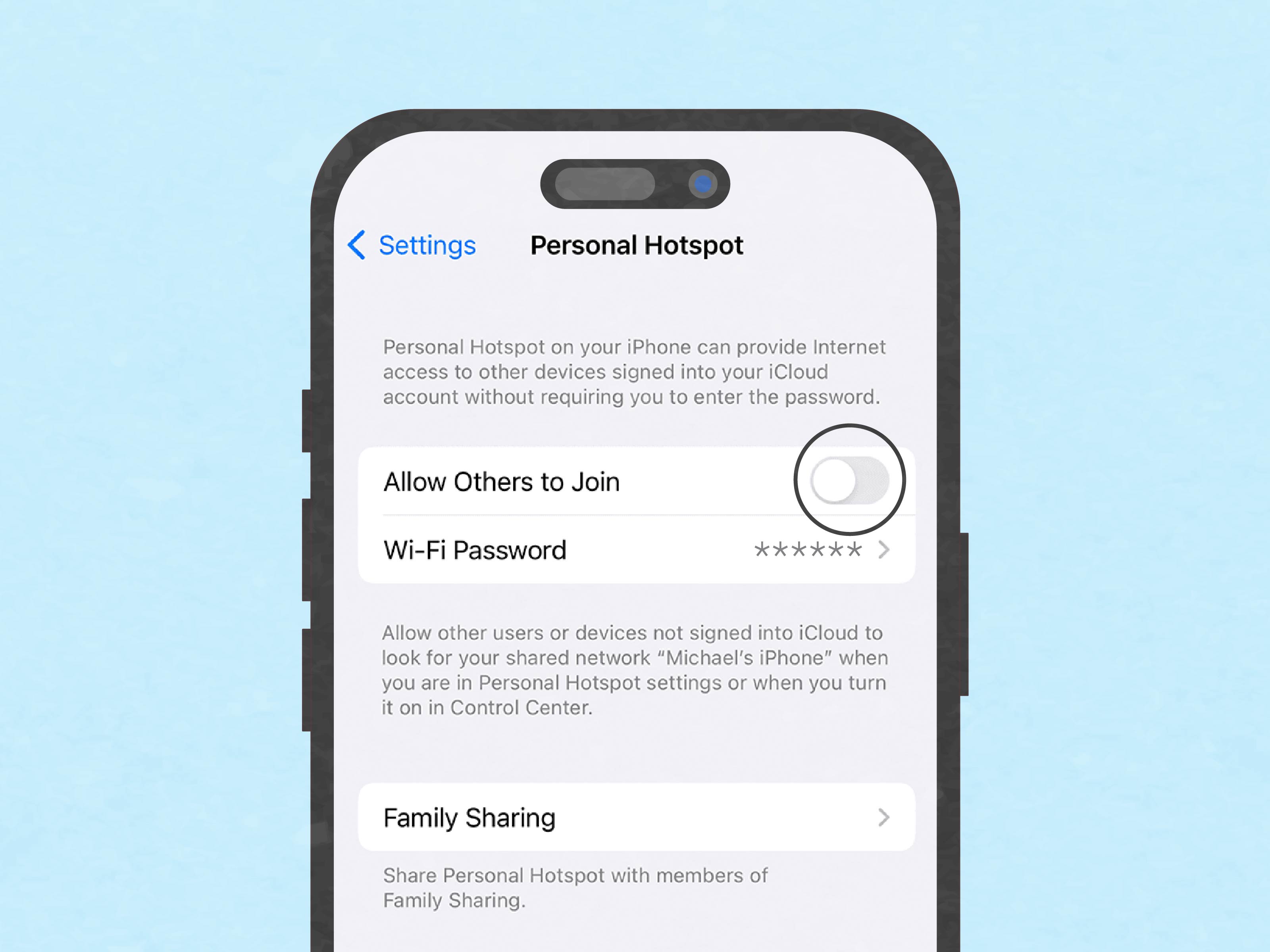
5. Turn Off Personal Hotspot
An active Personal Hotspot is a frequent reason AirDrop fails between an iPhone and another Apple device. The hotspot uses the phone’s wireless hardware to share its cellular connection, which can interfere with the peer-to-peer connection AirDrop needs.
Disable Personal Hotspot on an iPhone or iPad
- Open Settings.
- Tap Personal Hotspot.
- Turn off Allow Others to Join.
Check both devices if they support cellular service. Also disconnect any Mac that is currently using the iPhone’s hotspot. Once the AirDrop transfer is complete, you can turn the hotspot back on.
This fix is particularly important when the recipient appears in the AirDrop panel but the transfer remains on “Waiting.” The devices can sometimes discover each other through Bluetooth while failing to establish the Wi-Fi transfer connection.
6. Restart Both Apple Devices
Restarting is the troubleshooting equivalent of giving the operating system a clean desk. It closes stuck background services, refreshes wireless processes, and clears temporary errors without deleting personal data.
Restart both the sending and receiving devices, not just the one that appears to be misbehaving. AirDrop is a conversation between two systems, and either participant can be the one mumbling.
Restart an iPhone or iPad
Use the normal power-off controls for your model, wait approximately 20 seconds after the device shuts down, and turn it back on. You can also go to Settings > General > Shut Down.
Restart a Mac
Choose Apple menu > Restart. After signing back in, open Finder, select AirDrop, confirm the visibility setting, and attempt a small test transfer.
Send one photo or document first. If a small file succeeds, try the larger group again. This helps distinguish a general connection problem from a transfer that is struggling with a huge batch of files.
7. Check Screen Time, Management, VPN, and Firewall Restrictions
If the AirDrop option is missing, grayed out, or repeatedly turns itself off, a restriction may be blocking it.
Review Screen Time on an iPhone or iPad
- Open Settings.
- Tap Screen Time.
- Open Content & Privacy Restrictions.
- Review the allowed apps and features.
- Make sure AirDrop is permitted.
A school or employer can also disable sharing features through mobile device management. If the device is supervised, you may need to contact the organization’s IT administrator. There may be no user-accessible switch capable of overriding company policy.
Temporarily disconnect a VPN
Third-party VPN and security software can alter network behavior. Disconnect the VPN on both devices, retry AirDrop, and reconnect it afterward. Do not permanently remove necessary business security software without consulting the appropriate administrator.
Check the Mac firewall
On a Mac, open System Settings > Network > Firewall. If the firewall is configured to block all incoming connections, sharing services may not operate properly. Avoid permanently disabling security protection; instead, review the firewall options and allow built-in or required sharing services.
8. Install Available iOS, iPadOS, and macOS Updates
AirDrop relies on operating-system services rather than a separate app you can reinstall. If Apple fixes a discovery, Bluetooth, Wi-Fi, or sharing bug, the correction normally arrives through an iOS, iPadOS, or macOS update.
Update an iPhone or iPad
- Back up important data.
- Connect the device to power and Wi-Fi.
- Open Settings > General > Software Update.
- Install an available stable update.
Update a Mac
- Open System Settings.
- Select General.
- Click Software Update.
- Install updates compatible with the Mac.
Updating is especially important when one device runs significantly newer software than the other or when AirDrop stopped working immediately after a system change. After both devices restart, test the transfer again.
Devices running beta software deserve extra suspicion. Beta releases can contain unfinished networking code, so a stable public release is preferable when dependable AirDrop transfers matter.
9. Reset Network Settings as a Last Resort
If AirDrop still does not work after all previous fixes, the iPhone or iPad may have corrupted network settings. Resetting them can repair persistent Wi-Fi, Bluetooth, VPN, and peer-to-peer connectivity problems.
Before continuing, understand the inconvenience: a network reset removes saved Wi-Fi networks and passwords, cellular preferences, VPN configurations, and related network settings. It does not erase photos, apps, messages, or other personal content.
Reset network settings on an iPhone or iPad
- Open Settings.
- Tap General.
- Tap Transfer or Reset iPhone or Transfer or Reset iPad.
- Tap Reset.
- Select Reset Network Settings.
- Enter the passcode and confirm.
After the device restarts, reconnect to Wi-Fi, turn on Bluetooth, set AirDrop to “Everyone for 10 Minutes,” and test with a small file.
A Mac does not provide an identical one-button network reset. Start by forgetting and rejoining the Wi-Fi network. More advanced deletion of network configuration files should be approached cautiously and only after backing up the Mac or obtaining technical assistance.
What Different AirDrop Problems Usually Mean
The recipient does not appear
This usually points to visibility settings, Contacts Only recognition, disabled Bluetooth, excessive distance, a locked receiving device, or Screen Time restrictions.
AirDrop is stuck on “Waiting”
The devices have probably discovered each other, but the transfer connection is not completing. Toggle Wi-Fi and Bluetooth, disable Personal Hotspot and VPN connections, move the devices closer, and restart both products.
The transfer is declined immediately
The recipient may have tapped Decline, missed the approval prompt, or be unable to receive the selected content. Unlock the receiving device and repeat the transfer while watching for the notification.
AirDrop works in one direction only
Review the receiving settings on the device that cannot accept files. One-way failures often indicate that one product is set to Receiving Off, has an account-recognition issue, or is blocking incoming connections.
A large transfer keeps failing
Try sending fewer files at a time. Keep both devices awake, connected to power when possible, and close together. For hundreds of photos or very large videos, a wired transfer, iCloud Photos, or another file-sharing method may be more dependable.
Frequently Asked Questions
Does AirDrop need internet access?
No. AirDrop creates a direct wireless connection between nearby Apple devices. However, Wi-Fi and Bluetooth must be turned on because AirDrop uses those technologies for discovery and transfer.
Do both devices need to use the same Wi-Fi network?
No. They do not normally need to join the same router or Wi-Fi network. They do need functioning Wi-Fi hardware and must be close enough to establish a direct connection.
Why does AirDrop say “Everyone for 10 Minutes”?
The temporary option lets nearby devices discover your iPhone or iPad without leaving unrestricted discovery enabled indefinitely. After approximately 10 minutes, the setting automatically returns to a more private mode.
Can AirDrop send files to Android or Windows?
Traditional Apple AirDrop is designed for compatible Apple devices. For unsupported platforms, use a cloud-storage service, shared link, messaging app, email, USB connection, or a reputable cross-platform transfer tool.
When should I contact Apple Support?
Seek professional assistance if Wi-Fi or Bluetooth is also failing in unrelated apps, AirDrop remains unavailable after a network reset and software update, or the problem began after physical damage or liquid exposure. Those clues may indicate a deeper software or hardware issue.
Real-World AirDrop Troubleshooting Experiences
AirDrop failures often look mysterious because the visible symptom does not reveal the actual cause. In practice, the fastest approach is to test one small file and observe exactly where the process stops.
Consider a common office scenario. An employee wants to send a presentation from a MacBook to an iPhone before a meeting. The iPhone does not appear in Finder, even though Wi-Fi and Bluetooth icons are active. After switching the phone from Contacts Only to Everyone for 10 Minutes, it appears immediately. The contact card contained the employee’s company email address, while the Apple Account used a personal address. Nothing was wrong with the wireless hardware; AirDrop simply could not verify the relationship.
In another typical case, a family is traveling and using an iPhone Personal Hotspot for a MacBook. Someone tries to AirDrop vacation videos from the phone to the Mac. The Mac appears, but the transfer sits on “Waiting.” Turning off Personal Hotspot frees the wireless connection, and the videos begin moving. The lesson is useful: seeing a recipient does not prove that the full AirDrop connection is working. Bluetooth discovery may succeed while the Wi-Fi transfer stage fails.
Large photo batches create their own confusion. Sending 300 images at once can fail even when a single photo transfers perfectly. The practical solution is to divide the collection into smaller groups, keep both screens awake, and avoid moving the devices during the transfer. AirDrop is fast, but it is not emotionally prepared for every person’s complete camera roll before lunch.
Managed work and school devices produce a different experience. A user may search Settings repeatedly and never find an AirDrop option. Restarting, updating, and resetting Wi-Fi will not defeat a restriction imposed by an administrator. In that situation, checking device-management policies early prevents an hour of troubleshooting a feature that has intentionally been disabled.
One of the most effective diagnostic techniques is swapping roles. If an iPhone cannot receive from a Mac, try sending a photo from the iPhone to the Mac. When transfers fail in both directions, investigate Wi-Fi, Bluetooth, VPN, or broader networking problems. When only one direction fails, focus on the receiving device’s discovery, firewall, and permission settings.
It also helps to test with a second device when available. If one Mac can AirDrop successfully to two other iPhones, the original receiving iPhone is probably the problem. If the Mac cannot detect any nearby Apple device, the Mac’s wireless services or restrictions deserve closer attention.
The most reliable troubleshooting order is therefore simple: confirm visibility, unlock the devices, move them closer, refresh Wi-Fi and Bluetooth, disable the hotspot, restart, inspect restrictions, update software, and reset network settings only at the end. This order solves easy problems first and avoids unnecessary disruption.
Conclusion
When AirDrop is not working, resist the urge to declare war on the nearest Apple logo. Most failures come from discoverability settings, contact mismatches, wireless glitches, an active hotspot, restrictions, or outdated software. Work through the nine fixes in order and test with one small file after each change.
If AirDrop continues to fail while Wi-Fi and Bluetooth also behave incorrectly elsewhere, contact Apple Support or an authorized service provider. At that point, the problem may extend beyond AirDrop itself.

