
Makeup
3 Ways to Extract a JAR File
Jun
Note: This article is written for web publishing and is based on real technical documentation from Oracle Java resources, operating-system help pages, Linux command references, and archive-tool documentation.
A JAR file looks mysterious at first, mostly because it sounds like something that should contain pickles. In reality, a JAR file is a Java Archive: a compressed package used to bundle Java classes, resources, configuration files, images, metadata, and sometimes an entire runnable Java application. If you have ever downloaded a Minecraft mod, inspected a Java library, worked with Android-adjacent files, or poked around inside enterprise software, you have probably met a JAR file wearing its tiny digital trench coat.
The good news is that extracting a JAR file is usually simple. A JAR file is based on the ZIP file format, which means many common extraction tools can open it. However, “can open” and “should double-click wildly” are not the same thing. Some JAR files are executable, and running a file from an unknown source can be risky. When your goal is to inspect the contents, copy a resource, read a manifest, or troubleshoot a Java application, extracting the file safely is the smarter move.
In this guide, you will learn 3 ways to extract a JAR file: using the Java jar command, using a graphical archive utility such as 7-Zip or the built-in tools on Windows and macOS, and using command-line ZIP tools like unzip or PowerShell. We will also cover practical examples, common errors, safety tips, and real-world experience from working with JAR files that behave like polite archivesand a few that behave like raccoons in a server room.
What Is a JAR File?
A JAR file, short for Java Archive, is a package format used by Java applications. It commonly contains compiled .class files, a META-INF folder, a MANIFEST.MF file, libraries, images, text files, configuration files, and other resources needed by an application or library.
The important detail is this: a JAR file is essentially a ZIP-based archive with Java-specific structure. That is why you can often extract it using ZIP tools. The Java-specific parts, such as the manifest file, tell Java how the archive should behave, including whether it has a main class that can run as an application.
Common Reasons to Extract a JAR File
You may want to extract a JAR file when you need to:
- View the
META-INF/MANIFEST.MFfile. - Inspect images, sounds, or configuration files inside a Java app.
- Debug classpath or dependency issues.
- Recover bundled resources from a Java program.
- Check whether a JAR contains expected files.
- Analyze a mod, plugin, library, or application package.
One thing to remember: extracting a JAR file does not magically turn compiled Java bytecode into readable Java source code. Files ending in .class are compiled. To read source-like code, you would need a Java decompiler, and even then the output may not match the original developer’s exact source.
Before You Extract: Safety First
Before opening or extracting any JAR file, make sure you trust its source. A JAR can be executable, and malicious files can hide behind friendly names like free-tool.jar, invoice.jar, or the always suspicious definitely-not-a-virus.jar. If the file came from an unknown email, sketchy download page, or mysterious Discord message, treat it like a sandwich found in a parking lot: do not consume it blindly.
For safer extraction, follow these habits:
- Extract the JAR into a new empty folder.
- Do not double-click unknown JAR files.
- Scan suspicious files with reputable security software.
- Check the file name and extension carefully.
- Use command-line extraction instead of running the file.
- Verify signed JAR files when authenticity matters.
If you have the JDK installed, you can verify a signed JAR with:
This does not guarantee that the software is safe or trustworthy, but it can help confirm whether the archive signature is valid and whether signed contents have been modified.
Way 1: Extract a JAR File Using the Java jar Command
The most Java-native way to extract a JAR file is to use the jar tool included with the Java Development Kit, also called the JDK. This method is ideal for developers, system administrators, students, modders, and anyone who already works with Java from the command line.
When to Use This Method
Use the jar command when:
- You have the JDK installed.
- You want the official Java tool for JAR archives.
- You are working in Windows Command Prompt, PowerShell, macOS Terminal, or Linux Terminal.
- You need a repeatable method for scripts or documentation.
Step 1: Check Whether Java Is Installed
Open your terminal or command prompt and run:
Then check whether the jar tool is available:
If your system says the command is not found, you may have only a Java Runtime Environment or no Java installation at all. Install a current JDK from a trusted provider, then reopen your terminal so your system can recognize the new command.
Step 2: Move to the Folder Containing the JAR
Use the cd command to move into the folder where your JAR file is located. For example, on Windows:
On macOS or Linux:
Step 3: Extract the JAR
Run this command:
Here is what the options mean:
xmeans extract.fmeans the file name is provided in the command.example.jaris the JAR file you want to unpack.
The files will be extracted into the current directory. That is why it is smart to create a fresh folder first:
This keeps the extracted files organized instead of spraying folders and class files all over your Downloads directory like digital confetti.
Extract One File from a JAR
If you only need one file, specify the path inside the archive:
This extracts only the manifest file. You can inspect it with a text editor to see information such as the main class, class path, implementation version, or build metadata.
List Contents Before Extracting
To see what is inside before extracting, run:
For more detail, use:
This can show file sizes and timestamps, helping you decide whether the archive contains what you expected.
Way 2: Extract a JAR File Using 7-Zip, WinRAR, or Built-In Archive Tools
If command-line tools make your eyes glaze over like a donut, a graphical archive utility may be the easiest way to extract a JAR file. Since JAR files are ZIP-based, many archive programs can open them directly.
Best Tools for This Method
Common options include:
- 7-Zip: Free, lightweight, and popular on Windows.
- WinRAR: Widely used archive software that can open many compressed formats.
- Windows File Explorer: Useful if you rename a copy of the JAR to
.zip. - macOS Archive Utility: Built into macOS for ZIP extraction.
- PeaZip or similar tools: Useful for users who prefer open-source archive managers.
How to Extract a JAR with 7-Zip on Windows
To extract with 7-Zip:
- Install 7-Zip from its official website.
- Right-click the JAR file.
- Choose 7-Zip.
- Select Open archive if you want to browse first.
- Select Extract to “folder-name\” to unpack everything.
Using Extract to is usually cleaner than extracting files into the current folder. It creates a dedicated folder and saves you from playing “Where did that class file go?” afterward.
How to Extract a JAR by Renaming It to ZIP
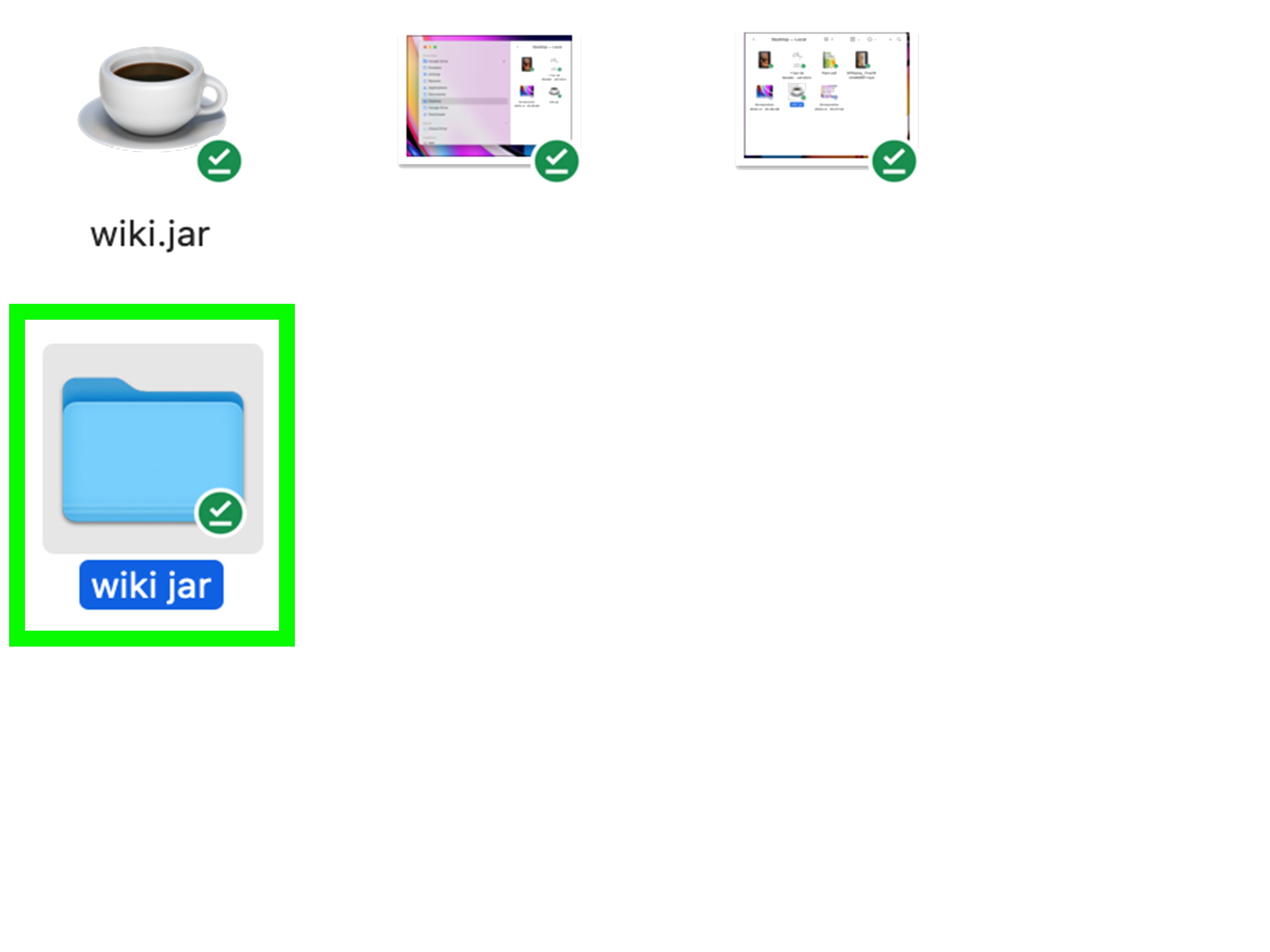
Another simple trick is to rename a copy of the file from .jar to .zip. For example:
Then use your normal ZIP extraction tool. On Windows, right-click the ZIP file and choose Extract All. On macOS, double-click the ZIP file to expand it.
Important: rename a copy, not your only original file. The contents do not change, but keeping the original JAR helps avoid confusion later, especially if the file is part of an application, server plugin, or development project.
Extracting on macOS
On macOS, you can try double-clicking a renamed .zip copy, or right-click and choose an archive tool if you have one installed. If the built-in Archive Utility does not like the file, try the Terminal method in Way 3.
Pros and Cons of the Graphical Method
Pros: It is beginner-friendly, visual, and fast. You can browse folders, preview names, and extract only what you need.
Cons: Some tools may not associate with .jar files by default. Windows may try to run the JAR instead of extract it. Also, renaming extensions can confuse beginners if file extensions are hidden.
To avoid mistakes on Windows, enable file extensions in File Explorer. That way you can see whether the file is really example.jar, example.zip, or the nightmare fuel known as example.jar.exe.
Way 3: Extract a JAR File Using Terminal, PowerShell, or unzip
The third method uses general-purpose command-line archive tools. This is especially useful on Linux and macOS, where unzip is commonly available, and on Windows, where PowerShell and modern command-line tools can handle ZIP-style archives.
Extract a JAR with unzip on Linux or macOS
Because a JAR is ZIP-based, you can often extract it with:
For a cleaner extraction into a specific folder, use:
To list contents without extracting:
This is a practical option when you do not have the JDK installed but still need to inspect a JAR file. It is also handy on servers where installing a full Java development environment may not be necessary.
Extract a JAR with PowerShell on Windows
PowerShell’s built-in archive command usually expects ZIP files, so the cleanest method is to copy the JAR and rename the copy:
This gives you a clear destination folder and avoids modifying the original JAR.
Extract a JAR with tar on Newer Windows Systems
Some Windows systems include a tar command that can extract ZIP-style archives. You can try:
If it works, wonderful. If not, do not argue with your terminal; terminals enjoy that too much. Use the Java jar command or 7-Zip instead.
Common Problems When Extracting JAR Files
Problem: “jar Is Not Recognized”
This usually means the JDK is not installed or the JDK bin directory is not in your system PATH. Install a JDK, then reopen your terminal. On Windows, you may also need to update environment variables.
Problem: Double-Clicking Runs the JAR Instead of Extracting It
That is normal. If Java is installed, your system may treat the JAR as an executable Java application. Right-click it and choose an archive tool, or use the command line.
Problem: Extracted Files Are Mostly .class Files
That is also normal. Java source files usually end in .java, while compiled files end in .class. A JAR typically contains compiled bytecode, not the original source code.
Problem: The JAR Extracts into a Messy Folder
Create a dedicated destination folder before extracting. This is the difference between “organized technical workflow” and “why is my Desktop full of package names?”
Problem: The Archive Tool Says the File Is Damaged
The download may be incomplete, the file may not actually be a JAR, or the archive may be corrupted. Try downloading it again from the original source. If the file came from an untrusted location, do not force it open.
Best Method: Which One Should You Choose?
Choose the Java jar command if you are a developer or want the most official method. Choose 7-Zip or a graphical archive tool if you want the easiest visual experience. Choose unzip, PowerShell, or tar if you are working in a terminal, on a server, or in a script.
For most beginners on Windows, 7-Zip is the simplest choice. For Java developers, jar xf is the cleanest. For Linux users, unzip example.jar -d folder is fast, clear, and delightfully boringwhich is exactly what you want from a file extraction command.
Practical Example: Extracting a Minecraft Mod JAR
Suppose you have a file named coolmod.jar and you want to inspect its assets. You could create a folder and extract it like this:
After extraction, you might see folders such as META-INF, assets, or package directories named after the developer’s namespace. You can inspect images, language files, configuration data, or metadata. However, do not edit and repackage files unless you understand the mod’s license and technical structure.
Extra Experience: Lessons Learned from Extracting JAR Files
After working with JAR files in real-world troubleshooting, one lesson becomes obvious: always extract into a clean folder. It sounds simple, but it saves time every single time. A JAR may contain dozens, hundreds, or thousands of files. If you extract it directly into Downloads, Documents, or a project root, you can quickly create a confusing mess of folders like com, org, net, and META-INF. These names are normal in Java packages, but they are not very helpful when scattered across an already busy directory.
Another practical lesson is to inspect before extracting. Running jar tf file.jar or unzip -l file.jar gives you a quick table of contents. This is useful when you only need one file, such as META-INF/MANIFEST.MF, a configuration file, or an image resource. Extracting one file is faster and cleaner than unpacking the entire archive. It also reduces the chance of accidentally overwriting files with similar names.
File association issues are also common, especially on Windows. Many users double-click a JAR expecting it to open like a folder, only to find that Windows tries to run it with Java. That behavior is not necessarily wrong; it just means the system sees the JAR as an executable Java archive. The fix is to right-click and choose an archive program, rename a copy to ZIP, or use the command line. When helping beginners, I usually recommend 7-Zip because it makes the archive structure visible without asking the user to memorize commands.
For developers, the jar command is still the most reliable habit to build. It works across operating systems when the JDK is installed, it preserves archive paths, and it fits naturally into build scripts or troubleshooting notes. If you are documenting a process for a team, jar xf app.jar is easier to reproduce than “right-click, then choose the menu item that may or may not appear depending on which archive tool Dave installed three years ago.” Poor Dave. His laptop has seen things.
Security is the lesson people often learn too late. A JAR file can contain executable code, so never run one just to “see what happens.” Extracting is safer than launching, but extraction is not a magic force field. Treat unknown JAR files with caution, especially when they come from email attachments, unofficial game mod sites, cracked software pages, or random links. If you need to inspect a questionable file, use an isolated environment, scan it first, and avoid executing anything inside.
Finally, remember that extracted .class files are not the same as source code. Many people expect to open a JAR and find neat .java files with comments, variable names, and friendly formatting. Usually, they find compiled bytecode instead. A decompiler may help you understand the structure, but it may not perfectly restore the original source. For simple resource extraction, a normal archive tool is enough. For code analysis, you need a different workflow and a clear understanding of legal and licensing boundaries.
Conclusion
Extracting a JAR file is not difficult once you understand what the file really is. A JAR is a Java archive built on ZIP-style packaging, so you can unpack it with the official Java jar command, a graphical archive utility like 7-Zip, or terminal tools such as unzip, PowerShell, or tar. The best method depends on your comfort level and goal.
If you are a developer, use jar xf. If you are a beginner, use 7-Zip or rename a copy to .zip. If you are working on Linux, macOS, or a server, unzip is often the fastest path. Whatever method you choose, extract into a clean folder, inspect contents before running anything, and treat unknown JAR files with caution. The JAR may be small, but like actual jars in the back of the fridge, you should know what is inside before opening it.
Source note: This article synthesizes information from official Java JAR documentation, Oracle extraction and verification guidance, Microsoft and Apple archive help, Linux command references, archive-tool documentation, and reputable Java education resources.

