
Beauty Unlocked
How to Root a Samsung Galaxy Tab 4: 10 Steps
Jun
Rooting a Samsung Galaxy Tab 4 can feel a little like opening the hood of an old but loyal car: exciting, useful, and slightly terrifying if you are holding the wrong wrench. The Galaxy Tab 4 family is older now, but many people still keep one around for reading, retro gaming, smart-home dashboards, kids’ apps, offline maps, or as a “please do not touch my main device” experiment tablet.
This guide explains how to root a Samsung Galaxy Tab 4 in 10 careful steps, with a strong focus on safety, model matching, backups, and common mistakes. The goal is not to make rooting sound magical. It is not. Root access gives you administrator-level control over Android, which means more freedom and more responsibility. Think of it as getting the master key to your tablet. Great power, yes. Also, a much higher chance of accidentally locking yourself in the garage.
Before starting, understand one rule: root only a device you own and are allowed to modify. Do not use rooting to bypass accounts, locks, school or workplace rules, payment restrictions, or app protections. Rooting is for customization, maintenance, learning, and extending old hardwarenot for sneaky nonsense.
What Does Rooting a Samsung Galaxy Tab 4 Mean?
Rooting means gaining privileged access to the Android operating system. On a normal tablet, many system files are locked away. That is good for security, but it also limits what you can change. With root access, you may be able to remove stubborn bloatware, use advanced backup tools, install firewall apps, modify system behavior, or flash custom software.
The Samsung Galaxy Tab 4 was released in several versions, including 7-inch, 8-inch, and 10.1-inch models. Common model numbers include SM-T230, SM-T231, SM-T235, SM-T330, SM-T331, SM-T335, SM-T530, SM-T531, and SM-T535. This matters because rooting files are model-specific. A file made for the SM-T530 should not be casually thrown at an SM-T230 like spaghetti at a wall. That is how tablets become decorative rectangles.
Before You Root: Read This First
Rooting can void warranty coverage, trip Samsung security flags on some devices, break apps that dislike modified systems, or cause boot loops if the wrong file is flashed. The Galaxy Tab 4 is old enough that warranty may not be your biggest concern, but security still matters. A rooted device should not be treated like a modern fully patched tablet, especially if it runs old Android versions such as KitKat or Lollipop.
You should also know that many old rooting guides mention tools such as Odin, CF-Auto-Root, SuperSU, TWRP, and sometimes one-click APK methods. Some of those tools were popular during the Tab 4 era, but download mirrors can be risky today. Use official sources, trusted developer threads, and model-specific instructions. Avoid random “root any Samsung in 30 seconds” websites. If the page looks like it was assembled by a pop-up ad wearing a trench coat, leave.
Tools and Materials You May Need
For most Samsung Galaxy Tab 4 rooting methods, you will need a Windows PC, a reliable USB cable, Samsung USB drivers, Odin or a similar Samsung flashing tool, and a root package or custom recovery file made for your exact model. You may also need a root manager such as SuperSU for older methods or Magisk for supported custom ROM environments. Current Magisk versions are aimed at newer Android versions, so older stock Tab 4 firmware may require older, device-specific approaches.
Do not begin until your tablet has at least 60 percent battery. A power failure in the middle of flashing is the tech version of pulling a cake out of the oven after five minutes and asking why it is soup.
How to Root a Samsung Galaxy Tab 4: 10 Steps
Step 1: Identify Your Exact Galaxy Tab 4 Model
Open Settings > About device and write down the model number exactly. Do not rely only on screen size. The Galaxy Tab 4 10.1, for example, may appear as SM-T530, SM-T531, or SM-T535 depending on Wi-Fi, 3G, or LTE configuration. The Galaxy Tab 4 8.0 and 7.0 also have multiple variants.
This is the most important step in the entire process. Root files, recovery images, kernels, and firmware packages are not universal. Using the wrong file can cause a soft brick, boot loop, failed flash, broken Wi-Fi, or worse. Match the model number, Android version, and region whenever possible.
Step 2: Back Up Everything Important
Before rooting, back up photos, documents, downloads, contacts, app data, and anything else you do not want to lose. Use Google backup, Samsung backup tools if available, a microSD card, or a manual copy to your computer. If you have files stored only on the tablet, assume they are already standing near a trapdoor.
Rooting does not always wipe data, but troubleshooting often does. If the tablet boot loops or needs a factory reset, your backup becomes the hero of the story. Without it, your “quick rooting project” can turn into an archaeological dig through regret.
Step 3: Install Samsung USB Drivers on Your PC
Install Samsung Android USB drivers on your Windows computer so the PC can recognize the tablet correctly in normal mode and Download Mode. This driver step is boring, but boring is good. Boring means your computer and tablet can talk without acting like two cats introduced in a hallway.
After installing the drivers, restart your computer. Then connect the Galaxy Tab 4 with a good USB cable. Avoid loose, charging-only, or mystery drawer cables. A bad cable can interrupt flashing and cause errors that look much scarier than they are.
Step 4: Enable Developer Options and USB Debugging
On the tablet, go to Settings > About device and tap Build number seven times until Developer Options are enabled. Then go back to Settings, open Developer options, and enable USB debugging.
USB debugging allows development tools to communicate with the device. It is useful during rooting and troubleshooting, but you should turn it off afterward when you do not need it. Leaving USB debugging enabled forever is like leaving the side door unlocked because you might need to bring groceries in later.
Step 5: Download the Correct Root or Recovery Files
Now find the root package or recovery image for your exact Galaxy Tab 4 model. For some SM-T53X and SM-T33X variants, older community guides used CF-Auto-Root through Odin. Other methods involve flashing TWRP recovery and then installing a compatible root package. The right path depends on your model number and Android version.
Use trusted sources such as official project pages and long-standing Android development communities. Check comments, dates, supported firmware versions, and user reports. If a file is labeled for another model, do not “try it anyway.” Android flashing is not a buffet.
Step 6: Put the Galaxy Tab 4 into Download Mode
Power off the tablet completely. On many Galaxy Tab 4 models, you can enter Download Mode by holding Volume Down + Home + Power. When the warning screen appears, press Volume Up to continue.
Download Mode is Samsung’s flashing mode. It allows Odin on your computer to send firmware, recovery, or root files to the tablet. If your button combination is different, look up the exact method for your model before proceeding. Do not mash buttons randomly like you are trying to unlock a secret arcade character.
Step 7: Open Odin and Connect the Tablet
Open Odin on your Windows PC as administrator. Connect the tablet using USB. Odin should show a connected device indicator, often under an ID:COM box. If nothing appears, try another USB port, reinstall the Samsung driver, restart the PC, or use another cable.
In Odin, leave the default options alone unless your model-specific guide says otherwise. Usually, Auto Reboot and F. Reset Time are the only boxes that should be checked. Do not check random options because they sound powerful. The PIT option, for example, is not a toy. It is more like a trapdoor with a label maker.
Step 8: Load the Root Package or Recovery File
Click the AP or PDA button in Odin, depending on the Odin version, and select the correct .tar or .tar.md5 file. For CF-Auto-Root-style methods, this may be a root package. For custom recovery methods, this may be a TWRP recovery file packaged for Odin.
Pause before clicking Start. Confirm the tablet model, file name, Android version, and guide instructions one more time. This is the moment to be slow and boring. Slow and boring keeps tablets alive.
Step 9: Flash the File and Wait for Reboot
Click Start in Odin and do not unplug the cable. Odin will flash the selected file and eventually show a success message such as PASS. The tablet may reboot automatically.
If Odin fails, do not panic. Disconnect only after the process has clearly stopped, reboot the tablet if possible, and review the file, driver, cable, and USB port. A failed Odin flash is often fixable. Panic-clicking, unplugging mid-flash, or grabbing five random downloads from the internet is how small problems become dramatic.
Step 10: Confirm Root and Clean Up
After the tablet boots, check whether the root manager app is installed. Older methods may install SuperSU. Custom recovery methods may require you to boot into recovery and flash a compatible root ZIP. If you are using a Magisk-based approach on a supported software setup, open the Magisk app and confirm installation status.
Once root is confirmed, turn off USB debugging unless you need it. Install only trusted root apps. Grant root permission carefully. A root permission pop-up should be treated like someone asking for your house keys, your Wi-Fi password, and permission to rearrange the kitchen.
What Can You Do After Rooting a Galaxy Tab 4?
Rooting can make an old Galaxy Tab 4 more flexible. You may be able to remove unwanted preinstalled apps, run advanced backup utilities, use system-level ad blocking, adjust performance settings, automate deeper system tasks, or explore custom ROMs if your model has active community support.
For many owners, the biggest benefit is breathing new life into aging hardware. A rooted Tab 4 can become a dedicated e-reader, kitchen recipe screen, retro emulator tablet, smart home controller, music player, or offline travel device. It will not become a modern flagship tablet. Root is powerful, not magical. It cannot turn 1.5 GB of RAM into a rocket engine, no matter how nicely you ask.
Common Rooting Problems and Fixes
Odin Does Not Detect the Tablet
Reinstall Samsung USB drivers, try another USB port, avoid USB hubs, use a different cable, and restart both the PC and tablet. Also make sure the tablet is actually in Download Mode.
The Tablet Is Stuck on the Samsung Logo
This is often called a boot loop. Try booting into recovery with Volume Up + Home + Power and clearing cache. If that does not work, you may need to flash the correct stock firmware for your model.
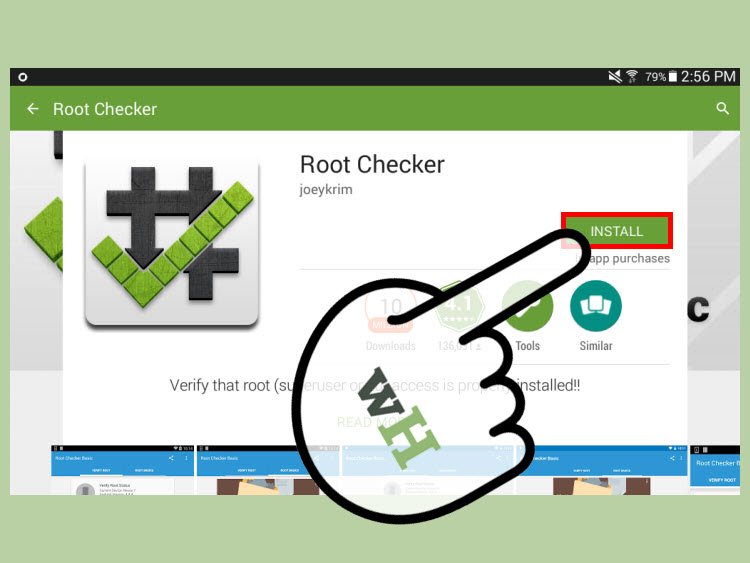
Root Checker Says Root Is Not Installed
The flash may not have completed, the wrong package may have been used, or the root manager may need to update binaries. Recheck your model-specific guide and confirm that the root method supports your Android version.
Apps Refuse to Run on a Rooted Tablet
Some banking, streaming, school, work, and security apps may refuse to run on rooted or modified devices. This is normal. Rooting changes the trust status of the device. Do not rely on a rooted Galaxy Tab 4 for sensitive accounts or important financial tasks.
Is Rooting a Samsung Galaxy Tab 4 Still Worth It?
Rooting a Galaxy Tab 4 can be worth it if you enjoy learning, experimenting, or repurposing older devices. It is especially useful if the tablet is no longer your main device and you understand the risks. It is less worth it if you need a secure daily tablet for banking, school accounts, private messages, or important work.
The Galaxy Tab 4 is from an older Android generation, and many units run outdated software. Rooting can improve control, but it does not provide modern security patches. In some cases, installing a well-supported custom ROM may be more useful than root alone, but only if your exact model has a stable build and you are comfortable with recovery tools.
Safety Tips for Rooted Galaxy Tab 4 Owners
After rooting, keep your setup simple. Do not install every root module you see. Do not grant root access to apps from unknown developers. Do not store sensitive financial information on an old rooted tablet. Keep a copy of your stock firmware and know how to return to factory software if something goes wrong.
Most importantly, document what you did. Save file names, versions, model numbers, and links in a text file. Future you will appreciate it. Future you has probably forgotten why there is a folder named “tablet stuff final final really final.”
Real-World Experience: What Rooting a Galaxy Tab 4 Feels Like
Rooting a Samsung Galaxy Tab 4 is rarely a glamorous experience. It is more like carefully repairing an old bicycle in the garage. You learn a lot, you get a little dust on your hands, and at least once you wonder whether the bicycle is judging you. The Tab 4 is old enough that many guides, files, and forum posts come from different Android eras. That means patience matters more than speed.
The first experience many people have is confusion over model numbers. Someone may say, “I have a Tab 4,” as if that is enough information. It is not. The 7-inch, 8-inch, and 10.1-inch versions are different. Wi-Fi and LTE models can be different. Regional firmware can be different. The model number is the tablet’s passport, driver’s license, and name tag all in one. Once you learn to check it first, the whole process becomes less chaotic.
The second experience is learning that old Android development communities are both amazing and messy. Forums may contain brilliant solutions from developers who kept devices alive long after manufacturers moved on. They may also contain broken links, outdated mirrors, abandoned files, and comments from people saying “worked for me” without explaining their exact model. Reading carefully is not optional. It is the difference between a successful root and a tablet that spends the evening staring at the Samsung logo like it is thinking about its life choices.
The third experience is realizing that backups are not boring once you need them. Before rooting, backing up can feel like the chore before the fun part. After a failed flash, that backup becomes your emotional support blanket. Photos, downloads, documents, and app data are easy to forget until they are gone. A rooted tablet can always be fixed or replaced more easily than personal files.
Many users also discover that root is not the finish line. It is the beginning of responsible maintenance. Once root access is available, every app that requests it deserves suspicion. A good root setup is quiet, stable, and boring. A bad one is full of random modules, conflicting tweaks, and mystery APKs downloaded from websites that blink too much. The best rooted Galaxy Tab 4 is usually the one with only the tools you actually need.
In day-to-day use, a rooted Tab 4 can still be charming. It may work well as a reading tablet, a lightweight media device, a retro gaming screen, or a home-control panel. Removing bloatware can make the interface feel cleaner. Advanced backup tools can make experiments less scary. A custom recovery can make the device feel less trapped in the past. But expectations matter. Root will not make old hardware feel like a brand-new premium tablet. It can make the old tablet more useful, not immortal.
The most satisfying part of rooting a Galaxy Tab 4 is the learning. You begin with a device that seems locked down and mysterious. By the end, you understand Download Mode, recovery, drivers, firmware, root managers, and why matching model numbers is sacred. Even if you eventually retire the tablet, the knowledge transfers to other Android projects. That is the hidden value of rooting older devices: the tablet becomes a classroom, and thankfully, it does not assign homework unless you count troubleshooting Odin errors at midnight.
Conclusion
Learning how to root a Samsung Galaxy Tab 4 is mostly about preparation. The actual flashing step may take only a few minutes, but the research, backups, model checks, and file verification are what keep the process safe. Rooting gives you deeper control over an aging Android tablet, but it also increases risk. Match your files carefully, use trusted sources, keep backups, and never root a device you do not own or have permission to modify.
If your Galaxy Tab 4 is sitting in a drawer, rooting may help turn it into something useful again. Just treat the process with respect. Old tablets can be surprisingly patient, but even they have limits.

