
Hair Care
What Does Live Mean on Find My: iPhone and iPad Guide
Aug
Opening Apple’s Find My app can occasionally feel like reading a tiny digital weather report. One person is labeled “Live,” another was seen “2 min ago,” and a missing device may be “Offline” or have “No location found” displayed beneath it. The labels are brief, but their meanings are not always obvious.
So, what does Live mean on Find My? In simple terms, Live means that Find My is receiving ongoing location updates from the person’s device instead of displaying only a recently recorded position. When the person moves, their marker can move across the map with them, sometimes showing the general direction and speed of travel. Apple describes Live Location as ongoing, real-time location sharing that can help contacts understand how someone is moving.
That does not mean Find My has transformed into a spy satellite hovering over a family member’s shoulder. Live Location works only when location sharing has been enabled, the necessary services are available, and the devices can communicate successfully. This guide explains what the label means, how it differs from other Find My statuses, how to use it on an iPhone or iPad, and what to do when “Live” suddenly becomes “five minutes ago.”
What Does Live Mean on Find My?
When Live appears under a person’s name in the People section of Find My, their device is sending updated location information frequently enough for Find My to present their movement as an ongoing location rather than a single snapshot.
For example, suppose your spouse is driving to meet you at a restaurant. A normal location update might place the marker at an intersection and leave it there until the app receives another position. With Live Location, the marker may continue moving along the road, giving you a better sense of the person’s progress, direction, and approximate speed.
Apple says that people receiving a shared Live Location may be able to follow the person’s ongoing location in real time and understand the direction and speed in which they are traveling. The information may be visible through Find My and other supported Apple apps, depending on the devices and software involved.
Live Does Not Mean Someone Is Using Their Phone
The Live label does not prove that the person is holding their phone, looking at the screen, or actively using Find My. It only indicates that their selected location-sharing device is currently providing ongoing updates.
A phone can share its location while locked and sitting in a cup holder, backpack, or pocket. Therefore, seeing someone’s marker moving does not mean they are texting while driving, scrolling through social media, or attempting to escape a family group chat.
Live Is Not Perfectly Instantaneous
“Real time” should be understood as near-real-time updating rather than a guaranteed second-by-second broadcast. A marker can pause briefly, jump forward, or drift slightly because of cellular coverage, Wi-Fi availability, GPS accuracy, indoor interference, battery conditions, or temporary server delays.
The blue circle or shaded area around a location marker can also indicate uncertainty. Apple explains that a smaller location circle generally represents greater precision, while a larger circle means the device’s exact position is less certain.
Live vs. Now vs. Other Find My Statuses
Find My uses several labels to communicate how fresh or reliable a location is. Understanding them can prevent unnecessary panic when a marker stops moving for thirty seconds.
Live
Live indicates ongoing location updates. The person’s marker may move as their selected device moves, making this status particularly useful during trips, pickups, walks, and meetups.
Now
Now generally means Find My has obtained a very recent location, but the interface is presenting it as a current snapshot rather than visibly tracking continuous movement. The location may still refresh, although it may not animate as smoothly as a Live Location.
A Number of Minutes or Hours Ago
A label such as “3 min ago” means the displayed position was recorded approximately three minutes earlier. It is the latest location Find My currently has, but the person or device may have moved since then.
This can happen when the device temporarily loses internet access, enters an area with weak reception, runs low on power, or stops providing location updates.
No Location Found
No location found means Find My cannot currently determine a usable location. Apple recommends enabling Notify When Found for missing devices so that Find My can alert you if the device becomes locatable again.
For a person, the message may appear if their device cannot be reached, location sharing has stopped, Location Services are unavailable, or another technical condition prevents Find My from obtaining their position.
Offline
An Offline label usually applies to a device that is not currently communicating directly through Wi-Fi or cellular service. Find My may still display its last known location, and supported Apple devices may sometimes be detected through the encrypted Find My network. Apple also offers a Notify When Found option for devices that cannot currently be located.
How Live Location Works on an iPhone
Find My combines available positioning technologies and network connectivity to determine and share an iPhone’s location. Depending on the circumstances, an iPhone can use GPS, nearby Wi-Fi networks, cellular information, Bluetooth, and other location-related signals.
When a user shares an ongoing location, the selected iPhone provides updated positioning information through Apple’s location-sharing system. The recipient sees those updates in Find My or another supported Apple app.
Both people must have compatible software and location sharing properly configured to receive the full Live Location experience. Apple’s current safety documentation specifically notes that two people using iPhones with iOS 15 or later can share Live Location, including a sense of direction and speed when the sharing person is moving. Some newer sharing options require iOS 17 or later.
How Find My Works on an iPad
The Find My app on an iPad can locate shared contacts, Apple devices, and supported items. In the People section, you can select a contact to view the person on a map, get directions, contact them, or assign a meaningful label such as Home or Work.
An iPad can also share its own location. This may be useful when the iPad is the device traveling with you, but it can cause confusion when the tablet stays at home while you leave carrying your iPhone.
Apple allows you to choose which iPhone or iPad represents your location. On the device you want to use, open Settings, tap your name, choose Find My, and select Use This [Device] as My Location.
If your friends keep seeing you “at home” while you are standing beside them at a coffee shop, your stationary iPad may be selected as your location-sharing device. Technology occasionally has an excellent sense of humor.
How to View a Live Location in Find My
On an iPhone
- Open the Find My app.
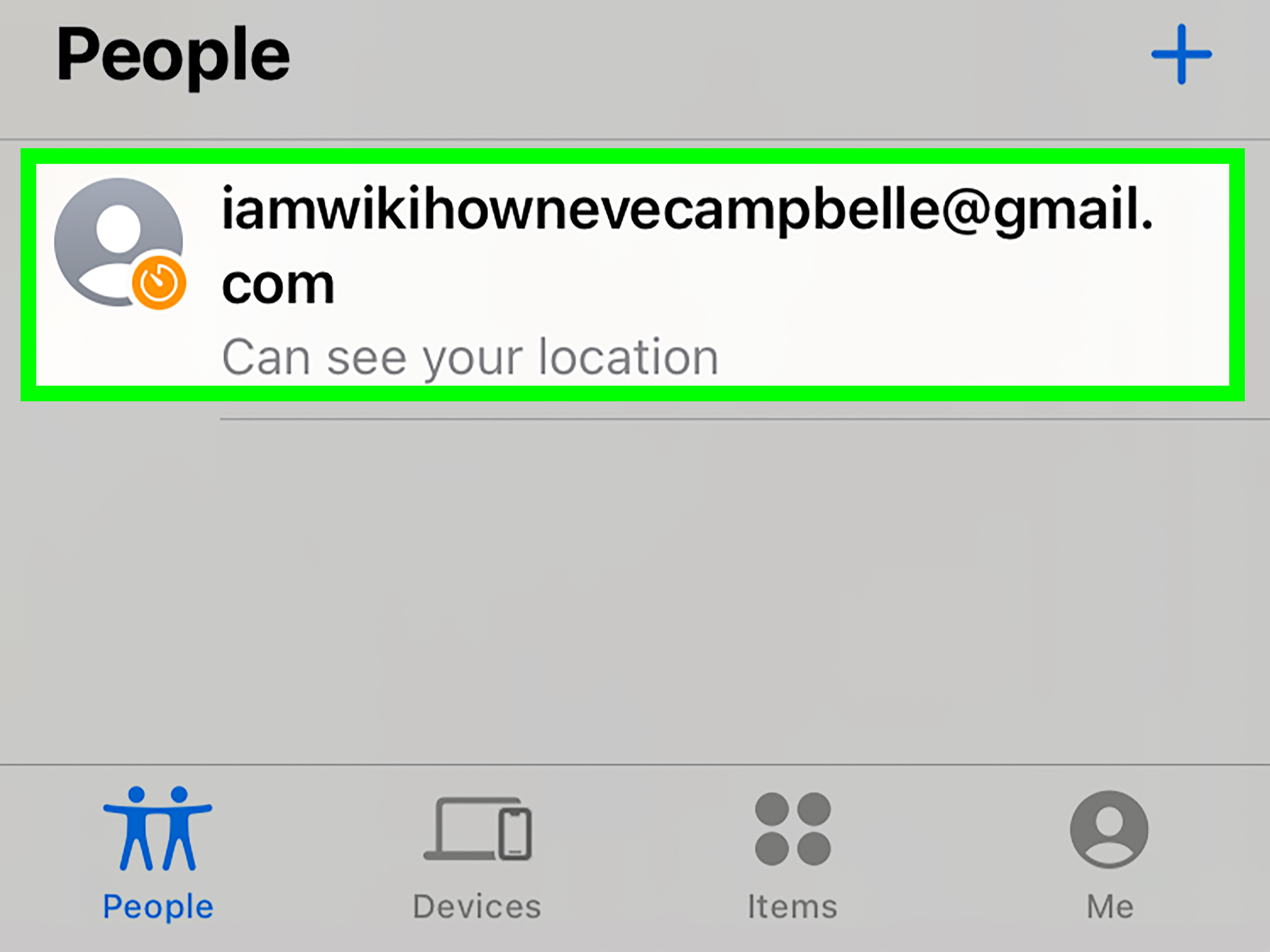
- Tap People at the bottom of the screen.
- Select the person whose location you want to view.
- Look for the person’s marker and the status shown beneath their name.
- Tap Directions when you want to open the location in Apple Maps.
If the person can be located, Find My shows them on the map. If their location is unavailable, the app may display “No location found.”
On an iPad
- Open Find My.
- Tap People in the sidebar or at the bottom-left of the screen.
- Choose the person you want to locate.
- Review the map, location status, and available contact or direction options.
The larger iPad display can make the map easier to read, especially when coordinating a meetup or following a family member’s progress during a trip.
How to Share Your Location in Find My
Share from an iPhone
- Open Find My.
- Tap Me and enable Share My Location.
- Open the People tab.
- Tap the add button and choose Share My Location.
- Select a contact.
- Choose to share for one hour, until the end of the day, or indefinitely.
Apple provides the same general duration choices for ongoing sharing in Find My, allowing users to share temporarily or continue sharing until they manually stop.
Share from an iPad
- Open the Find My app.
- Choose People.
- Tap the add button and select Share My Location.
- Enter or select the intended contact.
- Tap Send and choose the sharing duration.
You can stop sharing with one person by opening that person’s Find My card and selecting Stop Sharing My Location. To hide your location from everyone, open the Me section and turn off Share My Location.
Why Find My Does Not Show Live
A missing Live label does not automatically indicate that someone disabled sharing. Several ordinary technical conditions can turn an ongoing location into a timestamped position.
The Internet Connection Is Weak
Live Location needs reliable communication. Elevators, tunnels, parking garages, rural highways, crowded venues, and buildings with thick walls can interrupt cellular or Wi-Fi connectivity. Find My may continue showing the most recent position until the connection improves.
Location Services Are Disabled
Location Services must be available for Find My to determine a device’s position. On an iPhone or iPad, open Settings > Privacy & Security > Location Services and confirm that Location Services are enabled. Apple warns that disabling the main Location Services setting limits many important system and app features.
The Wrong Device Is Sharing the Location
A person who owns multiple Apple devices may accidentally share the location of an iPad left at home rather than the iPhone in their pocket. Check Settings > [name] > Find My and confirm that the correct device is listed as My Location.
The Device Is Off or Has No Battery
A powered-off device cannot provide ordinary ongoing Live Location updates. Find My may display its last available position or use available Find My network information for supported lost-device features, but that is different from following a person’s actively updated Live Location.
The Software Needs Attention
Outdated software, a temporary Find My error, or a stalled network connection can interfere with updates. Installing available system updates, restarting the affected device, and reopening Find My can resolve many short-lived problems.
Location Sharing Has Ended
The person may have selected a one-hour or end-of-day sharing period. When that period expires, you will no longer receive their ongoing location. They may also stop sharing manually at any time.
How to Fix Find My Live Location Not Working
- Confirm location sharing: Open Find My, tap Me, and make sure Share My Location is enabled.
- Check the sharing device: Confirm that the iPhone or iPad currently being carried is selected as My Location.
- Verify Location Services: Open Privacy & Security settings and make sure Location Services are on.
- Test connectivity: Open a website or another online app to confirm that Wi-Fi or cellular data works.
- Restart Find My: Close and reopen the app.
- Restart the device: A reboot can clear temporary positioning or networking problems.
- Update the software: Install available iOS or iPadOS updates.
- Restart location sharing: Stop sharing with the contact and create a new sharing session when appropriate.
- Enable Notify When Found: Use this option when trying to locate an unavailable Apple device.
Find My Live Location and Privacy
Live Location can be helpful, but it should be shared deliberately. Use it with people you trust and review indefinite sharing periodically. “Forever” is a surprisingly long time for a setting selected while coordinating brunch.
You can stop sharing with an individual without disabling Location Services for every app. You can also turn off Share My Location for everyone from the Me section in Find My. Apple’s personal-safety guidance provides additional tools for reviewing location sharing and related access.
Find My also supports location-change notifications, such as alerts when someone arrives at or leaves a place. Apple states that the person receives an alert when such a notification is created, and recurring notifications require the person’s approval.
The Live label itself does not mean somebody is currently watching the map. It describes the type of location being shared, not whether the recipient has Find My open at that moment.
Frequently Asked Questions
Does Live on Find My mean the person is moving?
Not necessarily. Live means the device is supplying ongoing updates. A stationary person can still have a Live status. When that person begins moving, the marker may move with them.
How accurate is Find My Live Location?
Accuracy varies. Outdoor locations with a clear view of the sky are often more precise than indoor locations, underground garages, or crowded urban areas. Use the size of the surrounding location circle as a general indication of precision.
Why does a Live Location jump between places?
The device may be switching among positioning signals or recovering from a temporary loss of GPS or network access. The map can jump when Find My replaces an estimated location with a more precise update.
Can Live Location work when the phone is off?
Not as normal ongoing person-to-person Live Location. A supported missing device may still be discoverable through the Find My network or may show a last known position, but that should not be confused with continuous Live sharing.
Can someone see my location after I stop sharing?
They should no longer receive your continuing location through that Find My sharing relationship. They may still remember or have recorded a previously displayed location, so stop sharing as soon as possible when privacy or safety is a concern.
Does Find My work without cellular service?
It can work over Wi-Fi. Lost-device detection may also use the Find My network on supported hardware. However, ongoing Live Location generally requires the sharing device to transmit fresh information through a usable network connection.
Real-World Find My Experiences and Final Takeaway
The difference between Live and a standard location update becomes clearest during everyday situations. Imagine waiting outside a concert venue with thousands of people leaving through several exits. A static location dot saying “Now” may place your friend somewhere near the building, which is technically correct but about as useful as saying they are somewhere in the same ZIP code. A Live Location can show the marker moving toward a particular street, making it easier to choose a meeting point.
Airport pickups provide another good example. Flight-tracking apps can tell you that an aircraft landed, but they cannot reveal whether your family member is still waiting for luggage, walking through the terminal, or approaching the pickup area. When Live Location works properly, you can see the marker gradually moving toward the curb. That can reduce repeated messages such as “Where are you?” followed by the timeless answer, “Almost there.”
Live Location is equally helpful during road trips. A traveler can share their location for an hour or until the end of the day, allowing another person to estimate progress without calling the driver. The recipient may see the marker following the highway and can prepare for the traveler’s arrival. The feature should complement safe communication, not encourage anyone to stare at Find My while driving.
Real-world use also reveals the system’s limits. Inside a shopping mall, a location marker may appear on the wrong side of the building or move unexpectedly. GPS signals are weaker indoors, and a multistory structure makes a two-dimensional map especially confusing. The person might be directly above the displayed point, one floor higher, while Find My confidently points to a shoe store. In these situations, a phone call or message remains more effective than treating the map like courtroom evidence.
Another common experience involves the wrong location-sharing device. Someone may set an iPad as My Location and later leave it on a kitchen counter. Friends then see that person peacefully remaining at home while the actual person is across town. Checking which device represents My Location often solves the mystery immediately.
Battery and network conditions also affect the experience. During a long hike, a Live marker may become a timestamped location when cellular coverage disappears. That change does not prove the person stopped sharing. It simply means Find My does not currently have fresh data. The older location should be treated as a reference point, not a guaranteed present position.
Ultimately, Live on Find My means that Apple is receiving and displaying ongoing location updates from the selected sharing device. It is more dynamic than a recent snapshot, but it is not infallible, perfectly instantaneous, or evidence that someone is actively using their phone. The best results come from enabled Location Services, a reliable network connection, compatible software, and the correct iPhone or iPad selected as My Location.
Note: Find My labels, menus, and feature availability can vary by device model, software version, account configuration, and region. This guide reflects current Apple documentation covering Live Location, Find My, iCloud device recovery, Family Sharing, privacy controls, and iPhone and iPad user guides.

