
Body Care
How to Use the Thesaurus in Microsoft Word in 6 Easy Steps
Jun
Ever typed a sentence in Microsoft Word and felt one word sitting there like a soggy potato? You know what you mean, but the word is too plain, too formal, too dramatic, or just too “I wrote this at midnight while negotiating with my coffee mug.” That is exactly when the Microsoft Word Thesaurus becomes your quiet little vocabulary superhero.
The Thesaurus in Microsoft Word helps you find synonyms, related words, and sometimes antonyms without leaving your document. Instead of opening a browser, falling into a rabbit hole, and somehow ending up reading about Victorian slang, you can stay inside Word and improve your writing in seconds. Whether you are writing a school essay, business report, blog post, resume, email draft, or creative story, the Thesaurus can help you choose words that sound more precise, natural, and polished.
This guide explains how to use the Thesaurus in Microsoft Word in 6 easy steps, plus practical writing tips, troubleshooting advice, examples, and real-world experience from using it during editing. By the end, you will know not only where the tool lives, but also how to use it wiselybecause not every synonym is your friend. Some arrive wearing a tuxedo to a backyard barbecue.
What Is the Thesaurus in Microsoft Word?
The Thesaurus in Microsoft Word is a built-in writing tool that suggests alternative words for a selected word. If you highlight or right-click a word such as “important,” Word may suggest options like “significant,” “essential,” “major,” “valuable,” or “critical.” These words are related, but they are not always interchangeable, which is where your human judgment enters the room wearing sensible shoes.
Unlike spell check, which focuses on whether a word is spelled correctly, the Thesaurus focuses on word choice. It helps you avoid repetition, strengthen weak wording, adjust tone, and make your writing clearer. It is especially useful when you keep using the same word over and over. For example, if every paragraph says something is “good,” your article may start sounding like a restaurant review written by a sleepy robot. The Thesaurus gives you better options: “useful,” “effective,” “reliable,” “impressive,” “practical,” or “well-designed,” depending on what you actually mean.
Why Use the Microsoft Word Thesaurus?
Using the Microsoft Word Thesaurus is not about showing off fancy vocabulary. It is about choosing the right word for the right job. Strong word choice can make a sentence more direct, persuasive, readable, and professional.
For example, compare these two sentences:
Basic: “The new policy had a big effect on employees.”
Improved: “The new policy had a significant effect on employees.”
The second version sounds more precise. But if the context is emotional, you might choose “dramatic,” “noticeable,” or “lasting” instead. The Thesaurus gives you choices, but the best choice depends on meaning, tone, audience, and context.
The tool is also convenient. You can access synonyms directly through the right-click menu, the Review tab, or the keyboard shortcut Shift + F7 in desktop versions of Word. That means you can revise while staying focused on your document instead of switching between apps and losing your train of thought somewhere between two browser tabs and a cookie consent popup.
How to Use the Thesaurus in Microsoft Word in 6 Easy Steps
Step 1: Open Your Document in Microsoft Word
Start by opening the document you want to edit. The Thesaurus works best when you are reviewing existing text, not when you are staring at a blank page hoping genius will descend from the ceiling fan. Write your rough draft first, then use the Thesaurus during revision.
You can use the Thesaurus in many desktop versions of Microsoft Word, including Word for Microsoft 365 and recent standalone versions such as Word 2021 or Word 2024. Menus may look slightly different depending on your operating system and version, but the basic process is similar.
If you are using Word for the web, available features may vary by account, browser, and Microsoft 365 setup. If you cannot find the full Thesaurus tool online, open the file in the desktop version of Word for the most complete experience.
Step 2: Select the Word You Want to Improve
Next, choose the word you want to replace or improve. You can double-click a single word to select it quickly. For example, imagine your sentence says:
“The presentation was very good.”
The word “good” is clear, but it is also vague. What kind of good? Persuasive? Organized? Memorable? Helpful? Accurate? Selecting “good” gives Word a target so it can suggest more specific alternatives.
Try to select only the word you want to look up, not the entire sentence. The Thesaurus works at the word level, so selecting too much text can make the results less useful. If you are working with a phrase, start with the strongest word in that phrase. For “very important,” for instance, select “important.” You may find “essential,” “crucial,” or “significant,” which lets you delete “very” and make the sentence cleaner.
Step 3: Open the Thesaurus from the Review Tab
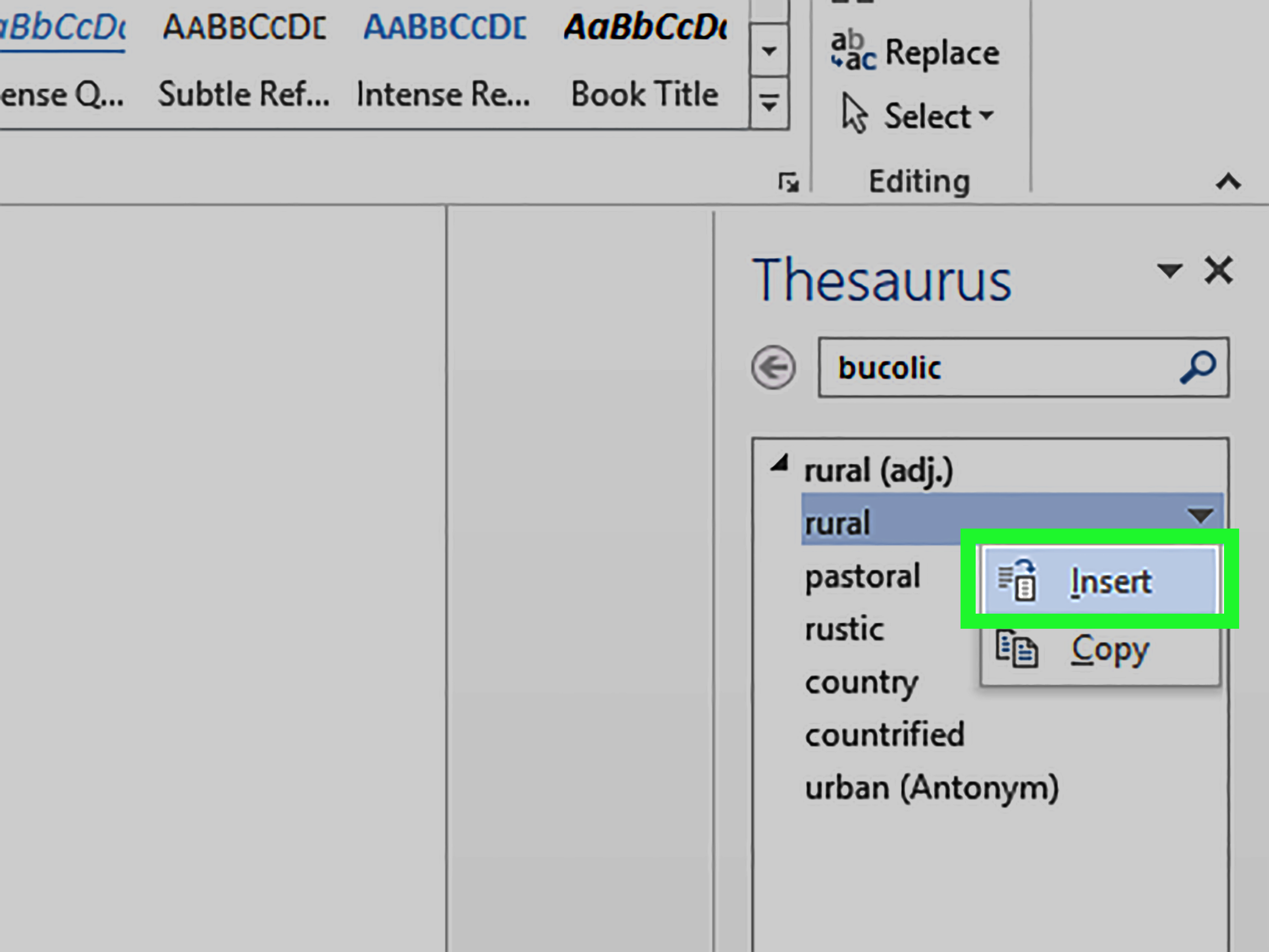
One of the most reliable ways to open the Thesaurus is through the Review tab. After selecting your word, go to the top ribbon and click Review. Then choose Thesaurus. Word will open a pane, usually on the right side of the screen, showing possible synonyms and related terms.
This method is useful because it gives you a fuller list than the quick right-click menu. You can scan multiple options, compare shades of meaning, and decide which word fits your sentence best. Think of it as browsing a tiny word buffet. Take what you need; do not pile your plate with “aforementioned,” “henceforth,” and “utilize” unless the sentence truly deserves them.
For example, if you look up “fast,” Word may suggest words such as “quick,” “rapid,” “swift,” or “speedy.” Each has a slightly different feeling. “Rapid growth” sounds natural in business writing. “Swift reply” sounds polished. “Speedy pizza delivery” sounds friendly. “The speedy implementation of enterprise protocols” sounds like someone lost a fight with corporate jargon.
Step 4: Use the Right-Click Synonyms Menu for Quick Changes
If you want a faster option, right-click the word and look for Synonyms. A short list of alternatives may appear in the context menu. Click the word you want, and Microsoft Word can replace the original word immediately.
This shortcut is perfect for quick edits. Suppose your sentence says:
“The report shows a large increase in sales.”
You might right-click “large” and see options such as “big,” “great,” “substantial,” or “considerable.” In a professional report, “substantial increase” or “considerable increase” may sound stronger than “large increase.”
The right-click method is also helpful when you are editing for repetition. If one paragraph uses “improve” three times, you might replace one instance with “enhance,” another with “strengthen,” and leave the third alone. Variety is useful, but too much variety can confuse readers. If you call the same thing a “plan,” “strategy,” “framework,” “blueprint,” and “operational pathway” in one page, readers may wonder whether you are discussing five different things or just trying to win Scrabble.
Step 5: Try the Keyboard Shortcut Shift + F7
For keyboard lovers, Microsoft Word offers a convenient shortcut: Shift + F7. Select a word, press Shift + F7, and Word opens the Thesaurus pane. This shortcut can save time if you edit long documents often.
On some laptops, you may need to press the Fn key as well, depending on your keyboard settings. If Shift + F7 does not work, try Fn + Shift + F7, or use the Review tab instead.
Keyboard shortcuts are especially useful during focused editing sessions. You can move through a paragraph, select weak words, open the Thesaurus, choose improvements, and keep going without constantly reaching for the mouse. It is a small speed boost, but small speed boosts add uplike finding a parking spot near the entrance, but for your writing brain.
Step 6: Choose the Best Synonym and Read the Sentence Again
After you choose a synonym, read the entire sentence again. Then read the paragraph. This step matters because a synonym can be technically related to a word but still wrong for the sentence.
Consider this sentence:
“The manager gave a small speech before the meeting.”
If you replace “small” with “tiny,” the sentence becomes:
“The manager gave a tiny speech before the meeting.”
That sounds odd, unless the manager was standing on a dollhouse podium. A better synonym might be “brief.”
“The manager gave a brief speech before the meeting.”
Now the sentence sounds natural. The lesson is simple: never accept a synonym just because it appears in the list. Check meaning, tone, grammar, and flow. A good synonym should make the sentence clearer, not make readers pause and think, “Wait, what just happened?”
Practical Examples of Using the Thesaurus in Word
Example 1: Improving a Resume
Weak resume bullet:
“Helped with customer service tasks.”
Using the Thesaurus, you might replace “helped” with “supported,” “assisted,” “coordinated,” or “managed,” depending on your actual role.
Improved version:
“Supported customer service operations by resolving inquiries and coordinating follow-up requests.”
This sounds more specific and professional without exaggerating.
Example 2: Polishing an Academic Essay
Basic sentence:
“The author uses many examples to show the problem.”
Possible revision:
“The author uses several examples to illustrate the problem.”
Here, “illustrate” is more precise than “show,” and “several” sounds more academic than “many” if the number is moderate.
Example 3: Strengthening a Blog Post
Basic sentence:
“This tool is good for people who write a lot.”
Possible revision:
“This tool is useful for students, professionals, and anyone who writes regularly.”
The improved sentence is clearer, more specific, and more search-friendly. For SEO writing, precise wording helps both readers and search engines understand the topic.
Common Mistakes to Avoid When Using the Thesaurus
Choosing Words You Do Not Fully Understand
The biggest thesaurus mistake is picking a word because it sounds impressive. Impressive is not always effective. If you are not sure what a suggested word means, check the definition before using it. A thesaurus gives options; it does not guarantee correctness.
For example, “cheap” and “inexpensive” can both refer to low cost, but they feel different. “Inexpensive” sounds positive or neutral. “Cheap” can suggest poor quality. If you write, “Our company offers cheap legal advice,” you may not create the trust you were hoping for.
Ignoring Tone
Every word carries tone. “Ask,” “request,” “beg,” and “demand” all involve wanting something, but they do not feel the same. Before replacing a word, ask yourself: Is this document casual, academic, persuasive, technical, or professional?
A school essay may benefit from formal wording. A blog post may need warm, conversational language. A legal memo needs precision. A birthday card probably does not need “felicitations regarding the anniversary of your birth,” unless you are trying to sound like a Victorian robot.
Replacing Too Many Words
The Thesaurus is best used selectively. If you replace every simple word with a complex synonym, your writing may become harder to read. Clear writing often uses familiar words. The goal is not to make every sentence sparkle like a vocabulary parade. The goal is to make your meaning easier to understand.
Forgetting About Grammar
Some synonyms require different grammar. For example, “discuss” does not need “about,” but “talk” often does.
Correct: “We discussed the issue.”
Correct: “We talked about the issue.”
Incorrect: “We discussed about the issue.”
When replacing a word, check whether the sentence structure still works.
How the Thesaurus Helps SEO Writing
The Microsoft Word Thesaurus can support SEO writing when used naturally. Search engines are increasingly good at understanding related terms, context, and topic depth. That means you do not need to repeat the exact same keyword awkwardly in every sentence. In fact, doing that can make your content sound stiff and unpleasant.
For an article about the Microsoft Word Thesaurus, related terms might include “synonyms in Word,” “word choice,” “Review tab,” “writing tool,” “proofreading,” “Microsoft Word tips,” and “vocabulary improvement.” These phrases help broaden the article without keyword stuffing.
However, do not use the Thesaurus just to force in more keywords. Use it to improve clarity. A helpful article written for real readers usually performs better than a page that sounds like it was assembled from spare search terms in a garage.
Troubleshooting: What If the Thesaurus Is Missing?
If you cannot find the Thesaurus in Microsoft Word, try these fixes:
Check the Review Tab
Look carefully under the Review tab. Depending on your screen size, some commands may be collapsed into smaller icons or grouped under proofing tools.
Use Right-Click Synonyms
Right-click a word and look for Synonyms. If you see a short list, you can use that menu or open the full Thesaurus pane from there when available.
Try Shift + F7
Select a word and press Shift + F7. On laptops, try Fn + Shift + F7 if the standard shortcut does not respond.
Check Your Language Settings
The Thesaurus depends on proofing language. If your document is set to the wrong language, suggestions may not appear as expected. Select the text, check the language settings, and make sure it matches the language you are writing in.
Use the Desktop App
If you are editing in a browser and cannot access the tool you need, open the document in the desktop version of Word. Desktop Word usually provides the most complete set of proofing and reference features.
Best Practices for Better Word Choice
The Thesaurus is powerful, but it works best when paired with thoughtful editing. Here are a few habits that can improve your writing immediately:
Use Specific Words
Replace vague words with specific ones. Instead of “things,” write “features,” “problems,” “tools,” “steps,” or “results.” Instead of “good,” choose the exact quality you mean: “clear,” “reliable,” “helpful,” “accurate,” or “efficient.”
Prefer Strong Verbs
Strong verbs often improve a sentence more than fancy adjectives. Instead of “make a decision,” write “decide.” Instead of “give an explanation,” write “explain.” Your sentence becomes shorter and stronger.
Match the Audience
If you are writing for beginners, choose simple words. If you are writing for specialists, technical terms may be appropriate. Good writing is not about using the biggest word; it is about using the word your reader understands fastest.
Read the Sentence Aloud
Reading aloud catches awkward synonyms quickly. If the sentence sounds like something no human would say voluntarily, revise it. Your ear is a surprisingly good editor, even before coffee.
Extra Experience: What Using the Microsoft Word Thesaurus Teaches You Over Time
After using the Microsoft Word Thesaurus for many editing tasks, one lesson becomes clear: the tool is most useful when you treat it as a writing assistant, not a writing replacement. It can suggest words, but it cannot fully understand your purpose, audience, or personality. That final decision belongs to you.
For example, when editing a student essay, the Thesaurus can help replace repeated words like “shows,” “says,” and “important.” But the best revision usually comes from asking what the sentence is really trying to do. Does the evidence “show” something, or does it “suggest,” “reveal,” “support,” “challenge,” or “emphasize” it? Each option changes the meaning. Once a writer starts noticing those differences, their writing improves quickly.
In business writing, the Thesaurus is helpful for softening or strengthening tone. Suppose an email says, “We are angry about the delay.” That may be honest, but it might not be the smartest professional choice. Looking up “angry” may lead to “concerned,” “frustrated,” or “disappointed.” The sentence “We are concerned about the delay” keeps the message serious without throwing a chair through the conference room window. Tone control is one of the underrated benefits of using synonyms carefully.
For blog writing, the Thesaurus is excellent for avoiding dull repetition. If an article uses “easy” too many times, alternatives such as “simple,” “beginner-friendly,” “straightforward,” or “quick” can add variety. But experience also teaches that repetition is not always bad. Sometimes repeating a key term helps readers stay oriented. In an article about the Microsoft Word Thesaurus, it is natural to repeat “Thesaurus,” “Microsoft Word,” and “synonyms.” Replacing every mention with “lexical reference apparatus” would be hilarious once and unbearable by the second paragraph.
The Thesaurus also teaches humility. Sometimes the simplest word is best. Writers may look up “use” and find “utilize,” but “use” is often clearer. They may look up “help” and find “facilitate,” but “help” may sound warmer and more direct. Over time, you learn that strong writing does not mean decorated writing. It means accurate writing.
Another practical experience is that the Thesaurus works beautifully during the second draft, not the first. During a first draft, momentum matters. Stopping every two sentences to hunt for the perfect word can turn writing into a slow-motion wrestling match. It is usually better to draft freely, mark weak words if needed, and return later with the Thesaurus during revision. That way, you protect both creativity and clarity.
When editing long documents, the Shift + F7 shortcut becomes especially useful. It keeps the process smooth: select a word, open suggestions, compare options, replace if needed, and move on. The Review tab is better when you want a broader view, while right-click Synonyms is better for quick fixes. Using all three methods gives you flexibility.
The most important experience-related tip is to check the sentence after every replacement. A synonym can look perfect in the pane and still sound strange in context. The word “bright” might mean intelligent, colorful, sunny, or promising. If you replace it carelessly, your sentence may wander into comedy. Context is king, queen, and the person holding the clipboard.
Ultimately, learning how to use the Thesaurus in Microsoft Word is not just a software trick. It is a writing habit. It trains you to pause, question vague language, consider your reader, and choose words with intention. Used well, it makes your writing cleaner, sharper, and more confident. Used recklessly, it makes your writing sound like it swallowed a dictionary and needs medical attention. Choose wisely.
Conclusion
The Thesaurus in Microsoft Word is one of those simple tools that can make a big difference when you use it thoughtfully. In 6 easy steps, you can open your document, select a word, access the Thesaurus through the Review tab, use right-click Synonyms, try the Shift + F7 shortcut, and choose the best replacement based on context.
For students, professionals, bloggers, and everyday writers, this tool helps improve word choice, reduce repetition, and polish tone without leaving Microsoft Word. The secret is not to choose the fanciest synonym. The secret is to choose the clearest one. A strong word should fit the sentence so naturally that readers notice the idea, not the tool you used to find it.
Note: This article is based on current Microsoft Word functionality and established writing best practices for using synonyms, thesaurus tools, word choice, and revision effectively. Source links are intentionally not included in the publish-ready article body.

